Getting started
This tour takes one greyscale micro-CT scan from your computer to numbers and figures you can use: upload it, segment it, tidy it up, run a tool from each category, read the results and download them. It takes a few minutes of your time; the jobs run in the cloud while you read their results as they arrive. Each step links to the tool's page in the User guide, which has every setting.
1. Sign in
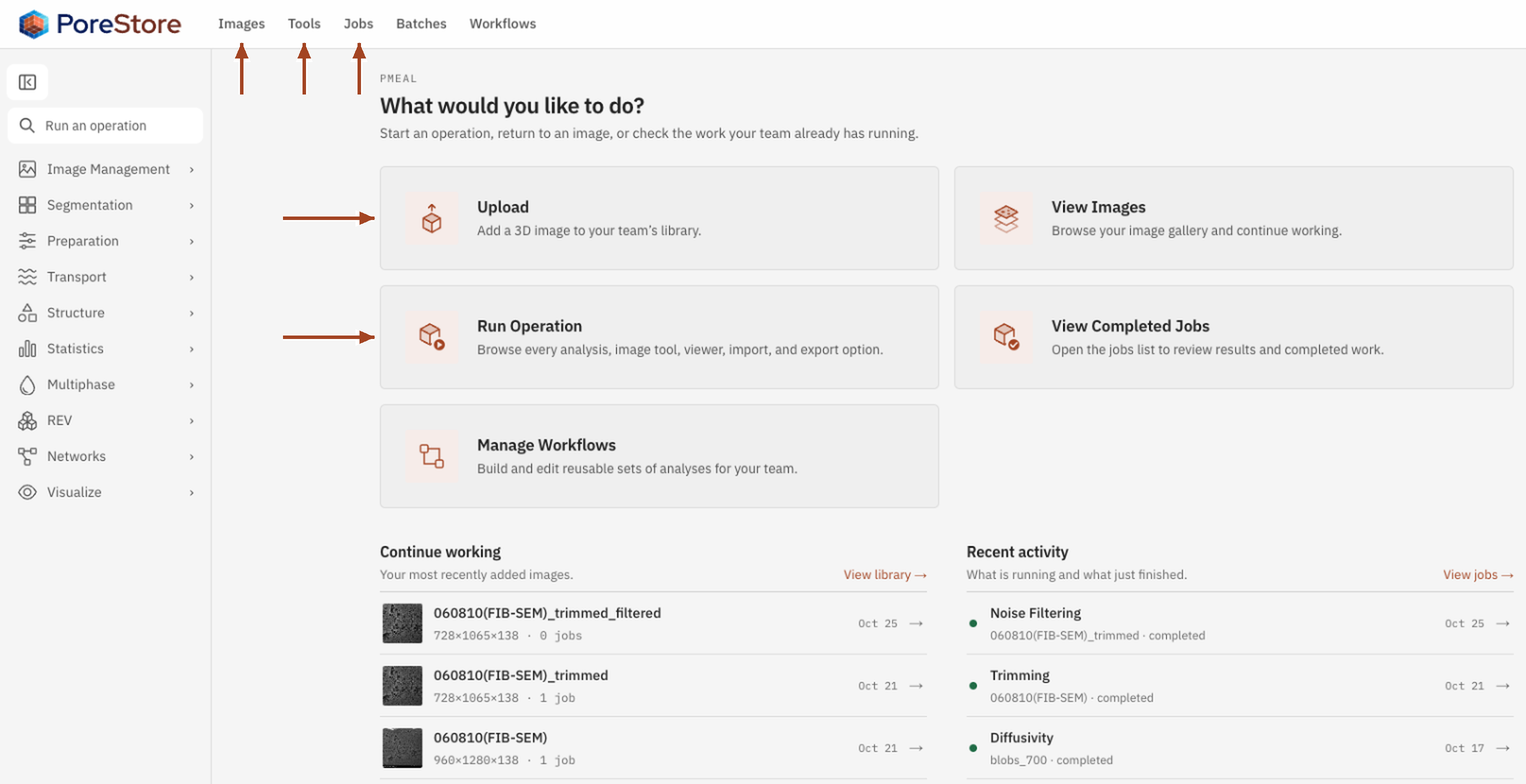
Go to porestore.com and select Sign in. Continue with your Google or GitHub account, or use your email address and password. You land on Home, your team's starting point: from here you can upload images, open your library, run a tool or check on your jobs. Everything you add belongs to your team, so colleagues in it see the same images and results.
2. Upload a 3D image
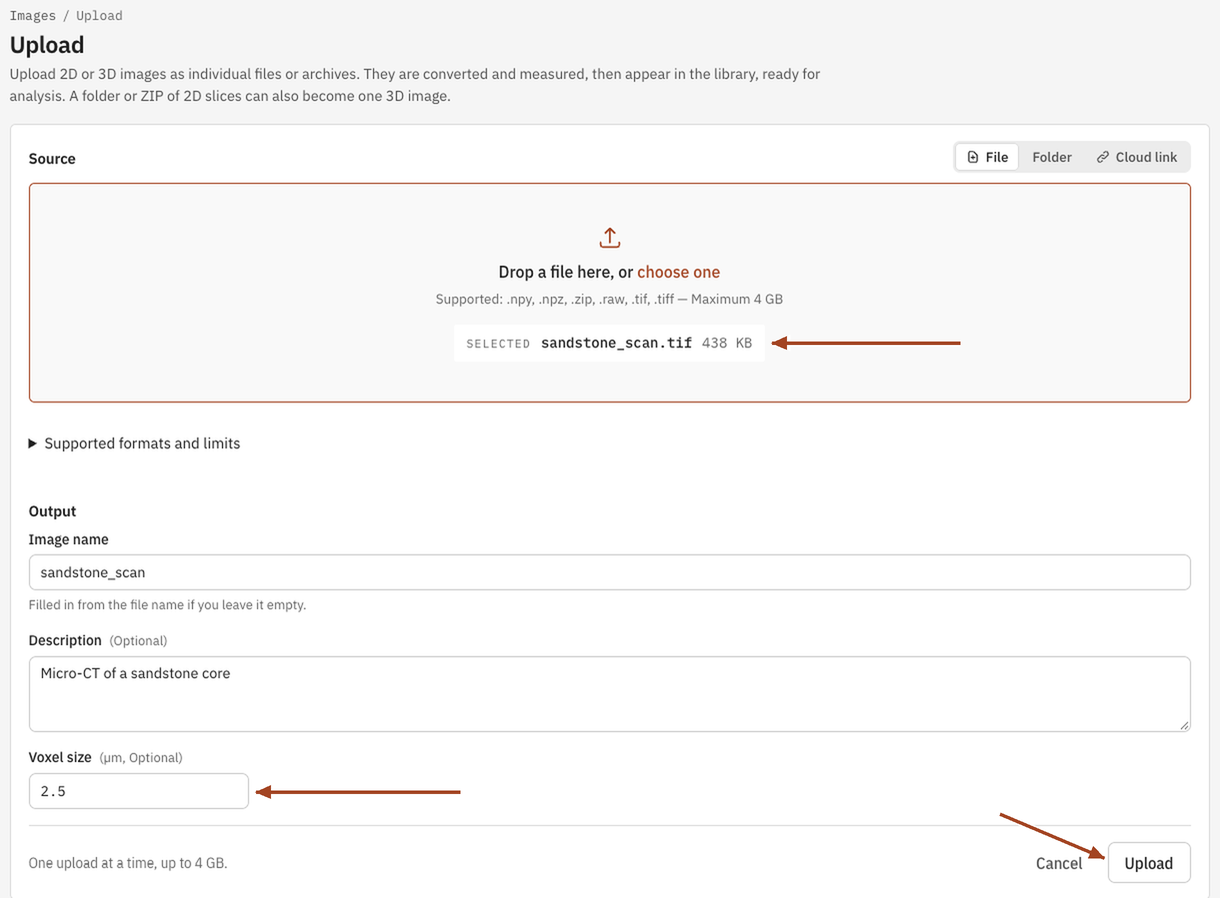
Select Upload, drop a 3D greyscale image on the page (a multi-page TIFF or a NumPy .npy file, for example), give it a name and enter its Voxel size in micrometres. Select Upload. The image appears in your library as processing while PoreStore reads and measures it, then turns ready. You can set or correct the voxel size later; every result follows it. Upload lists every format and its settings.
3. Segment it into pore and solid
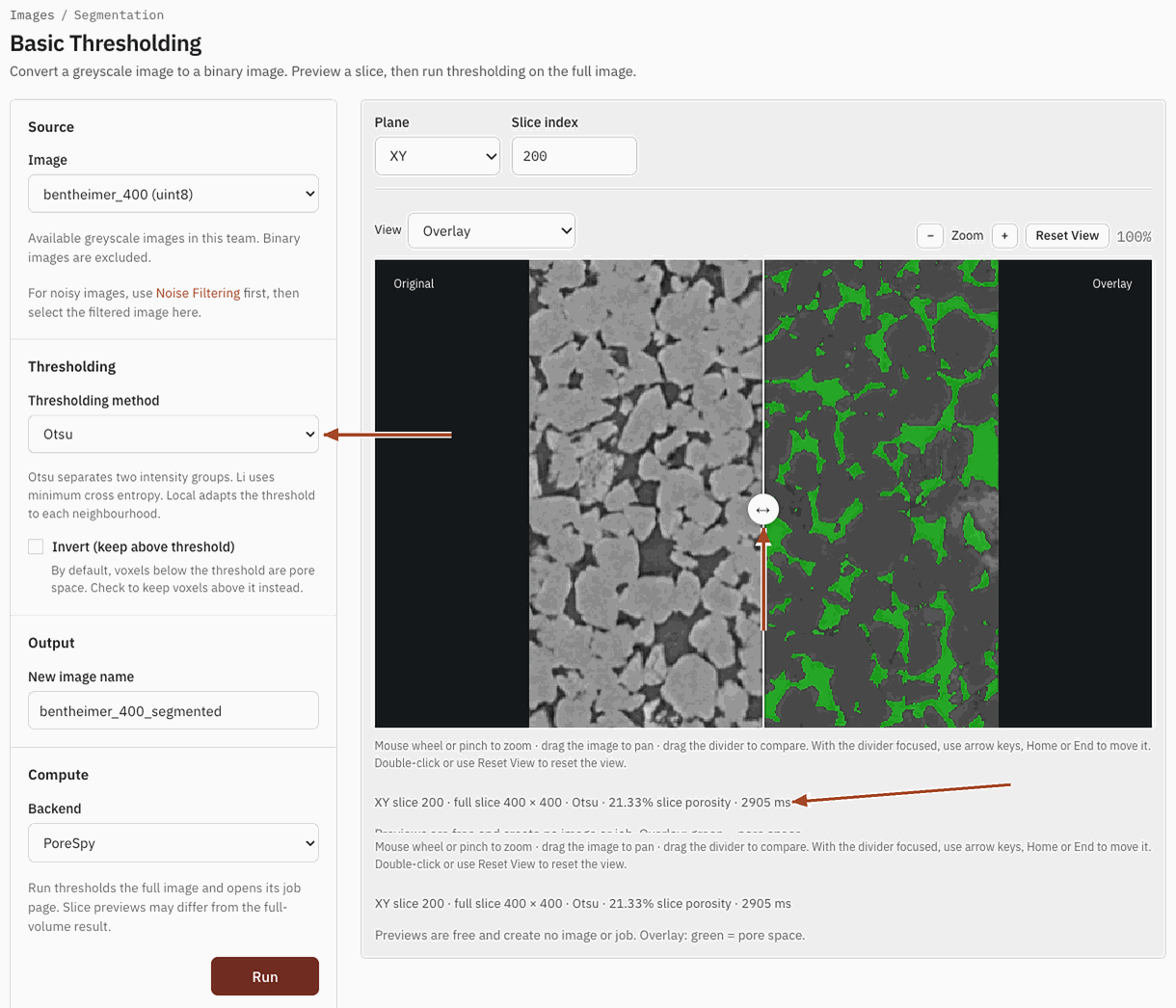
Open Tools, select Basic Thresholding under Segmentation, and choose the new image. The page previews one slice of the result as you go: try Otsu first, drag the divider to compare the scan with its segmentation, and check the slice porosity under the preview. Select Run, and PoreStore saves a new binary image beside the greyscale one, with pore as 1 and solid as 0. For a difficult scan, Interactive Segmentation learns from voxels you paint. See Basic Thresholding.
4. Trim unwanted edges
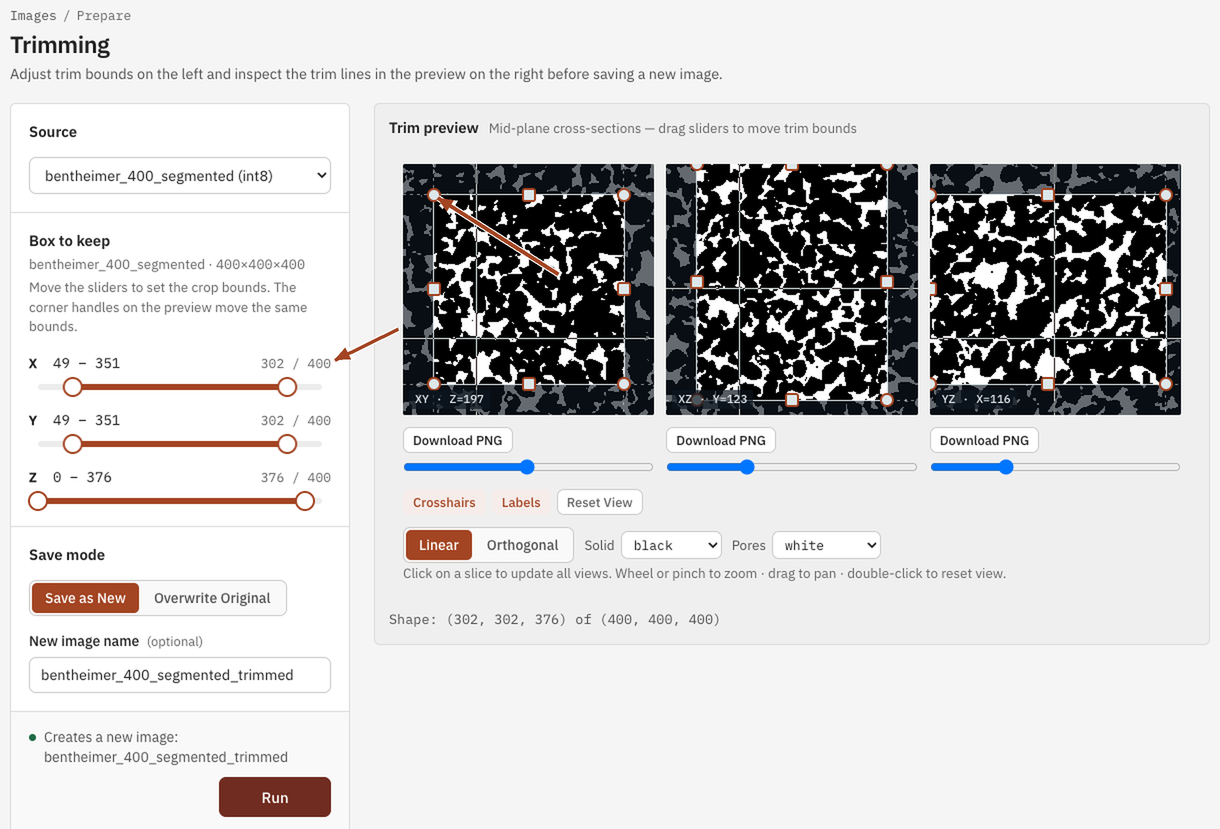
Scans often include things that aren't sample: the space around a cylindrical core, or a damaged edge. Open Trimming under Preparation and choose the segmented image. Pull the X, Y and Z sliders (or the handles on the preview) in until the box holds only sample, and select Run to save the trimmed copy. See Trimming.
5. Clean it
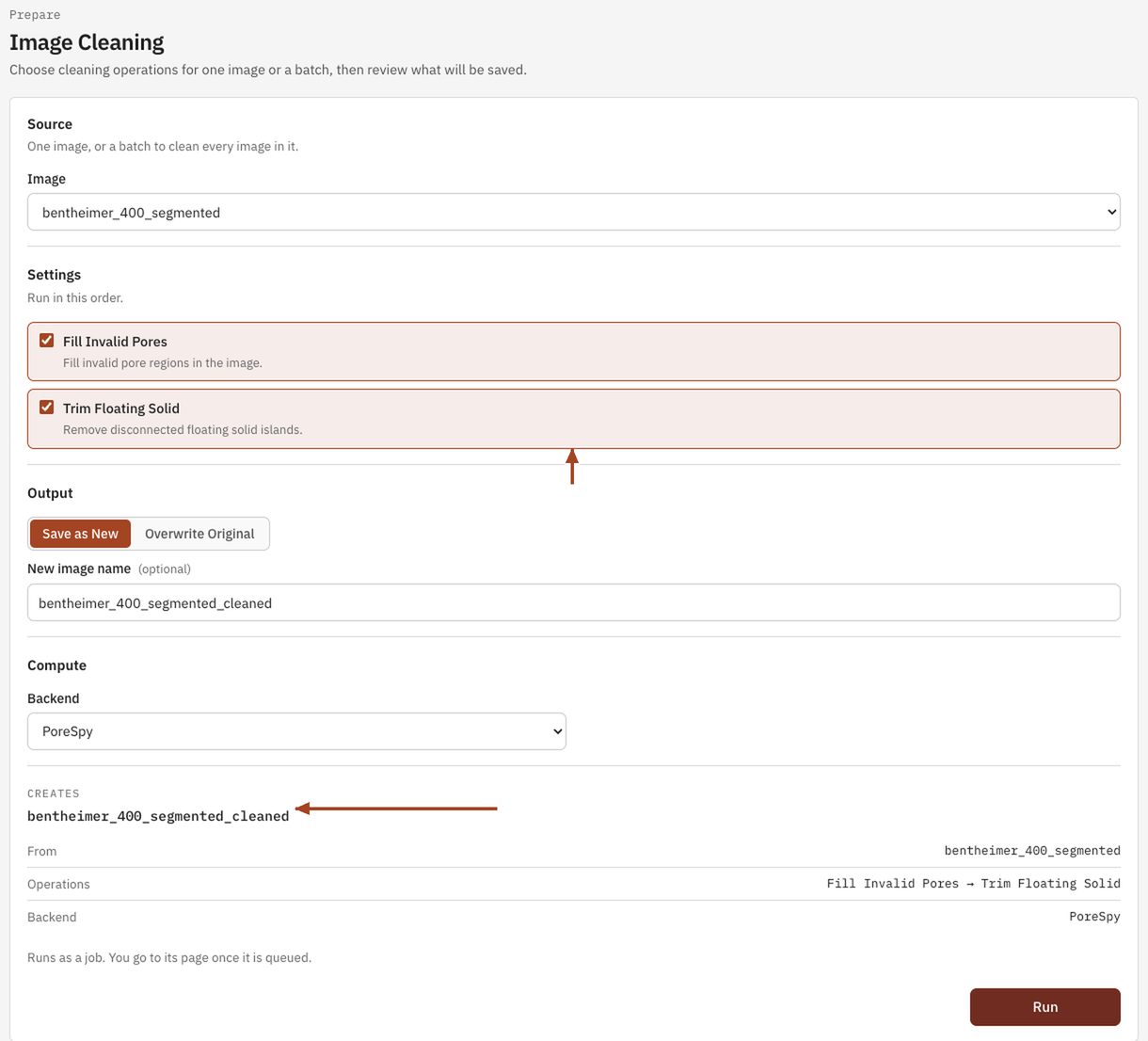
Segmentation leaves pores sealed off inside the solid and specks of solid floating in the pores. Open Image Cleaning, choose the trimmed image, tick Fill Invalid Pores and Trim Floating Solid, and select Run. Your image is now ready for any tool. See Image Cleaning.
6. Run a tool from each category
Every tool works the same way: choose it, check the image, adjust a setting or two, and select Run. You don't need to wait for one job before starting the next. Here is one from each category; each job runs on its own and lands in Jobs.
Transport: Permeability
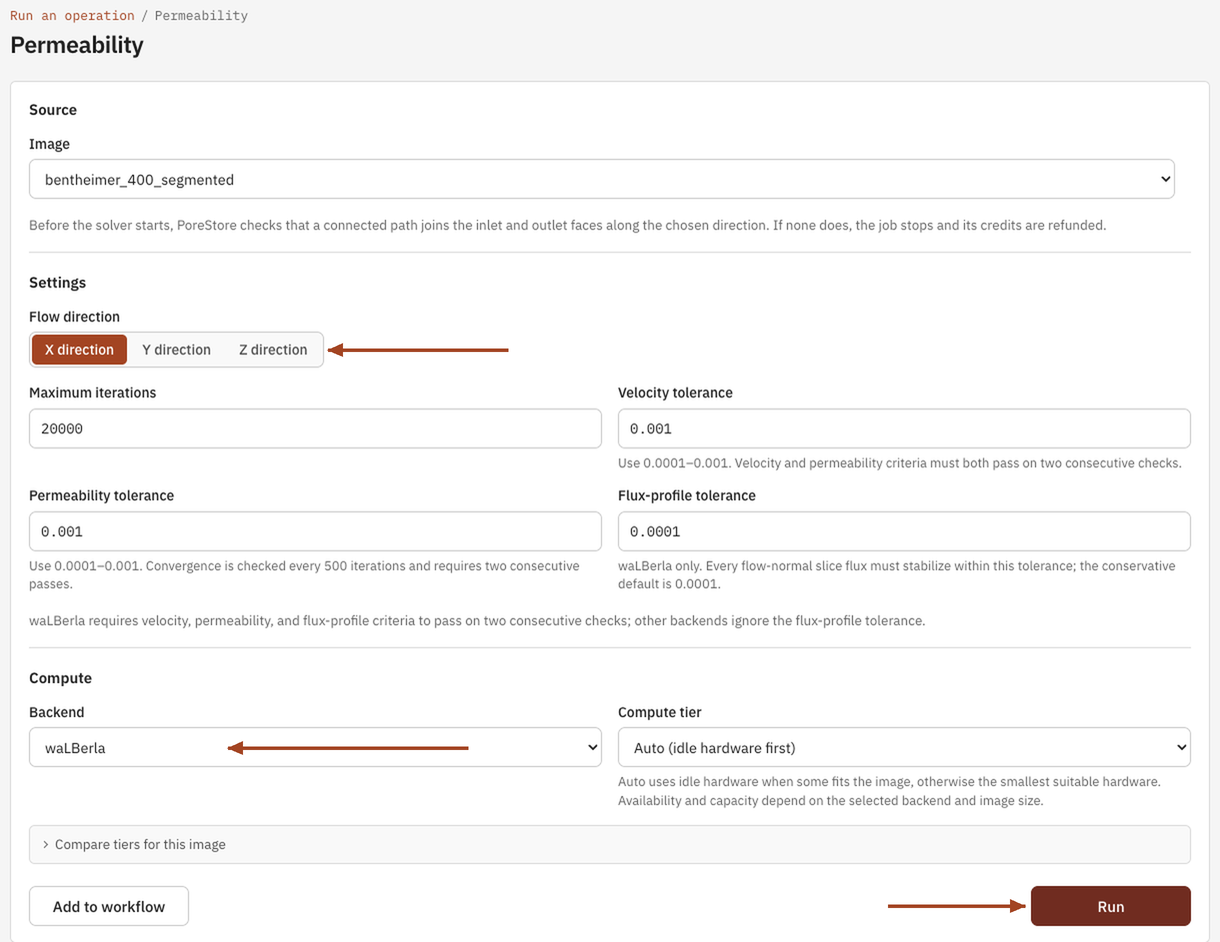
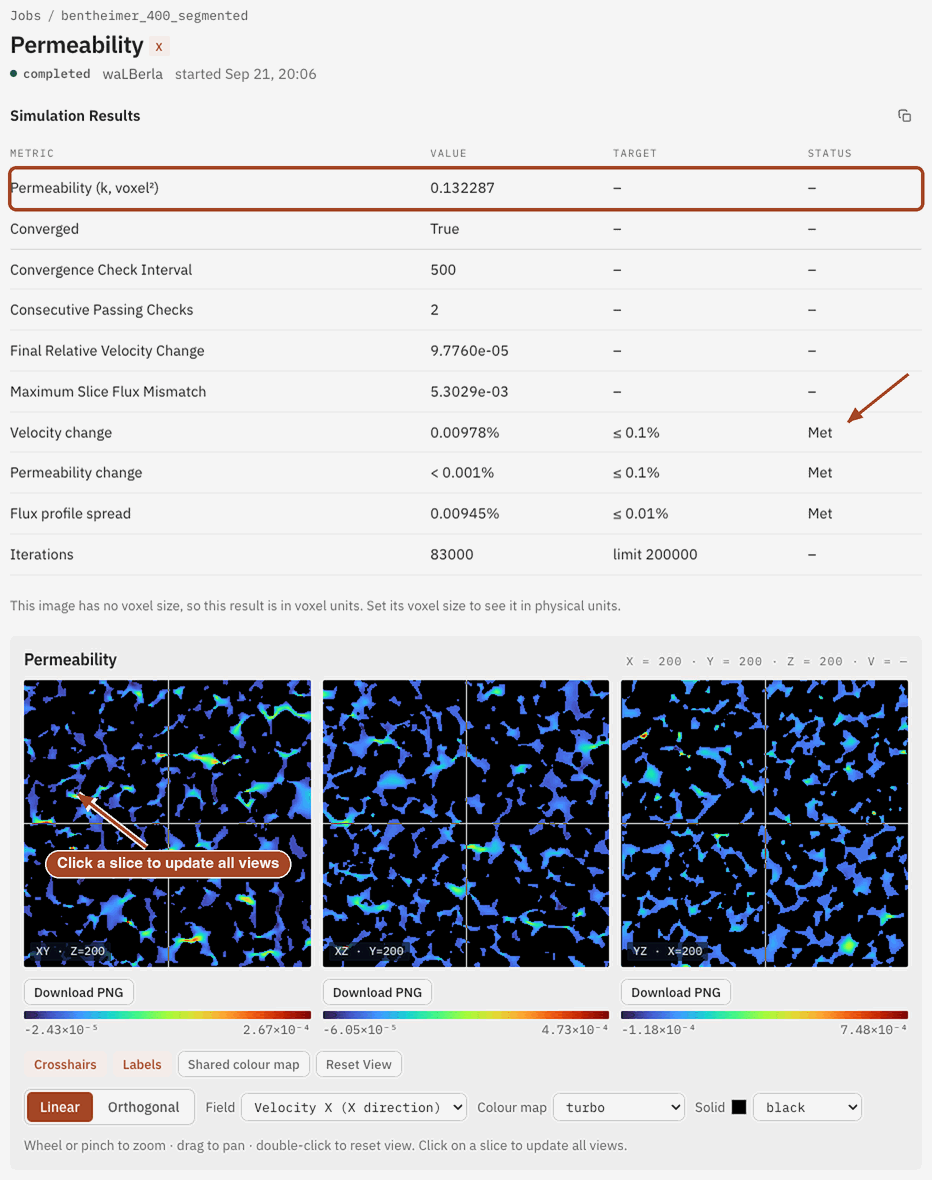
How easily fluid flows through the sample. Choose Permeability, pick the Flow direction, keep the suggested settings and Backend, and run it. The result gives the permeability in millidarcy and saves the pressure and velocity fields. See Permeability.
Structure: Pore Size
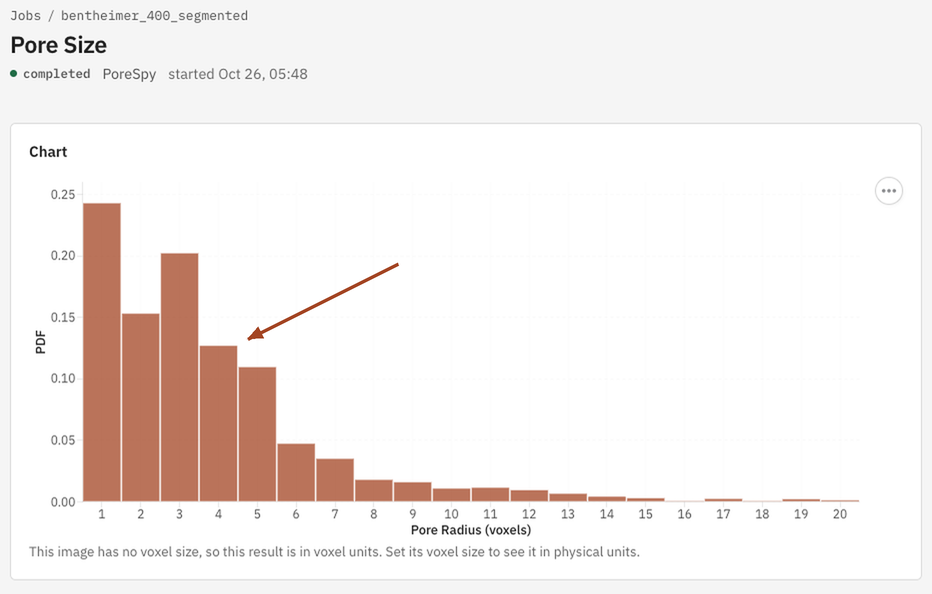
How big the pores are. Pore Size fits the largest sphere into every part of the pore space and reports the volume-weighted distribution of pore radius, with its median. See Pore Size.
Statistics: Chord Length
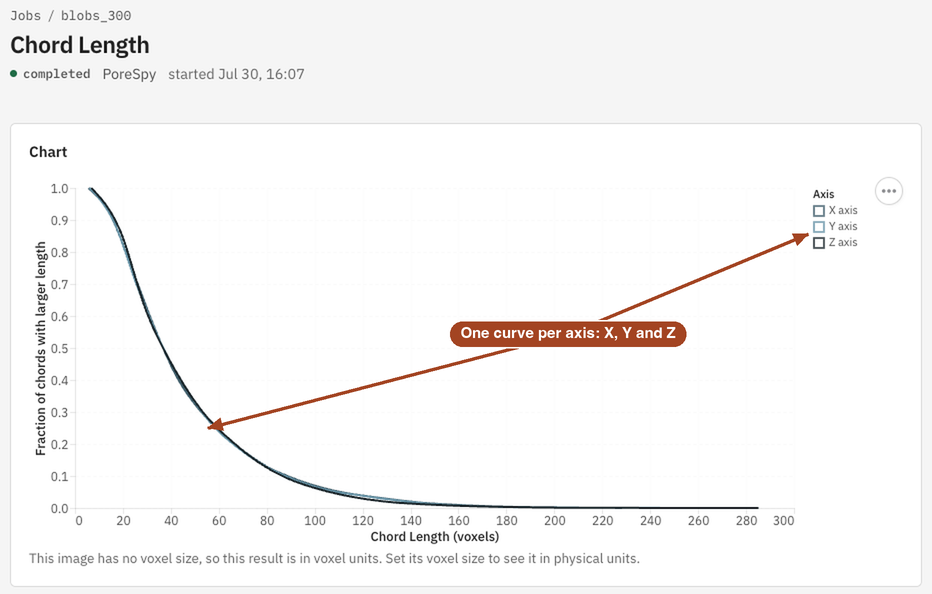
Whether the pores are stretched along one axis. Chord Length measures straight runs through the pores along X, Y and Z; different distributions along different axes mean the structure is anisotropic. See Chord Length.
Multiphase: Mercury Porosimetry
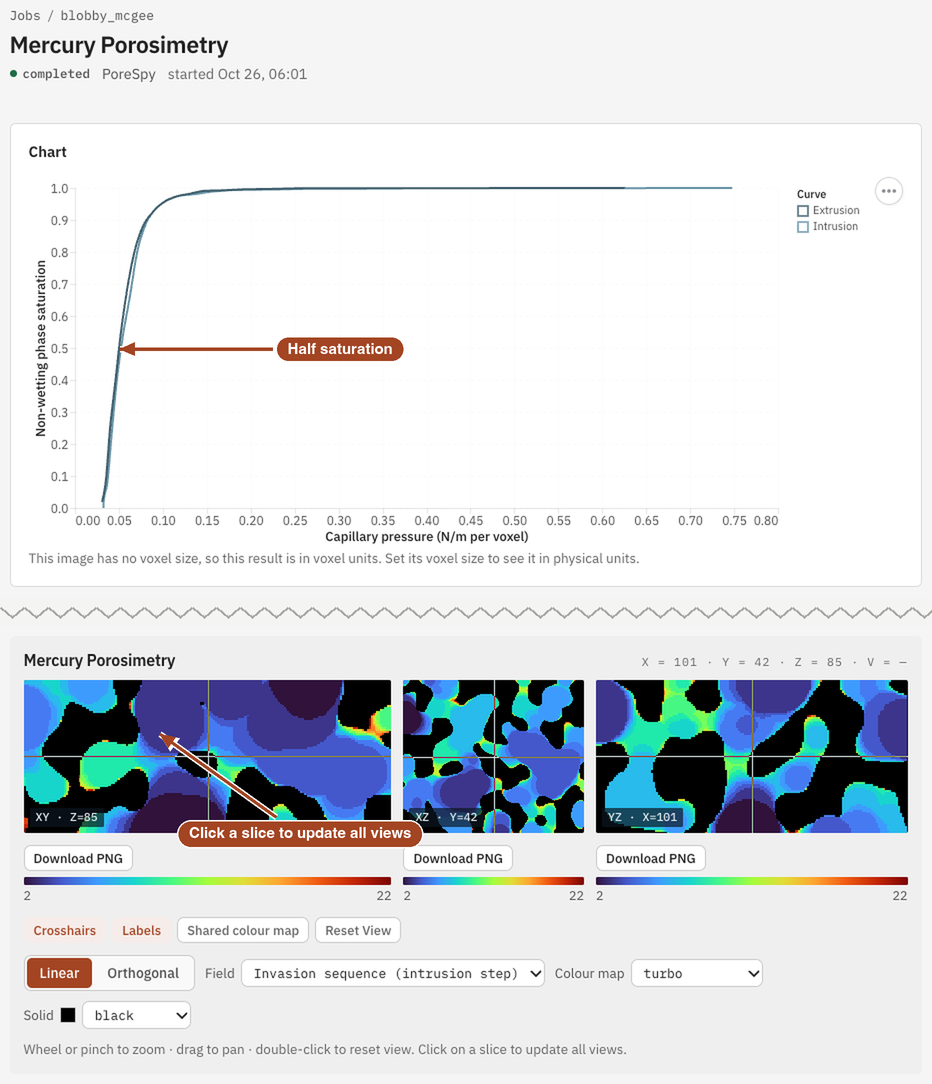
What a mercury porosimetry test on the sample would show. Mercury Porosimetry pushes a non-wetting fluid in step by step and plots capillary pressure against saturation. See Mercury Porosimetry.
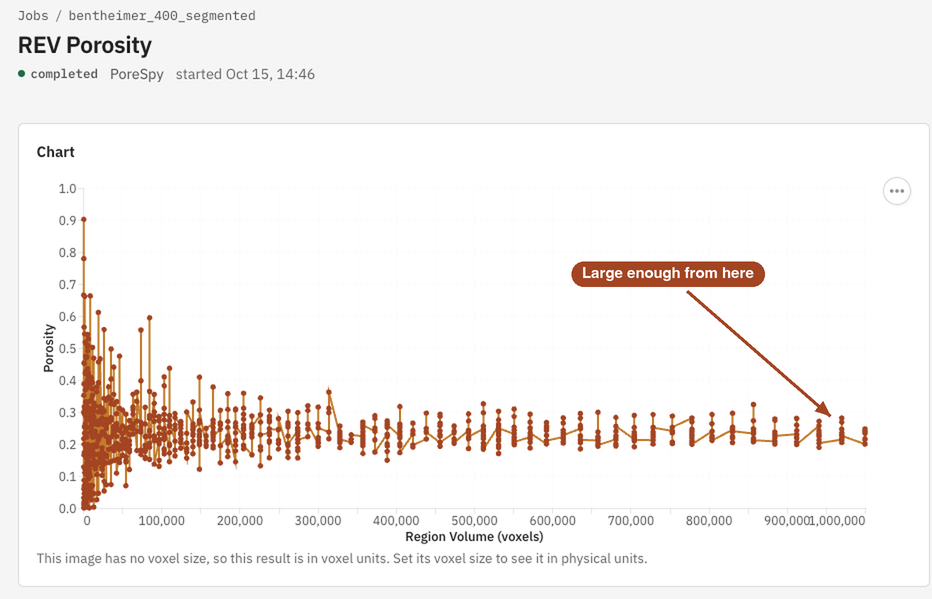
REV: REV Porosity
Whether the sample is big enough to represent the material. REV Porosity measures porosity in many random cubes of growing size; when the scatter settles, the sample is large enough. See REV Porosity.
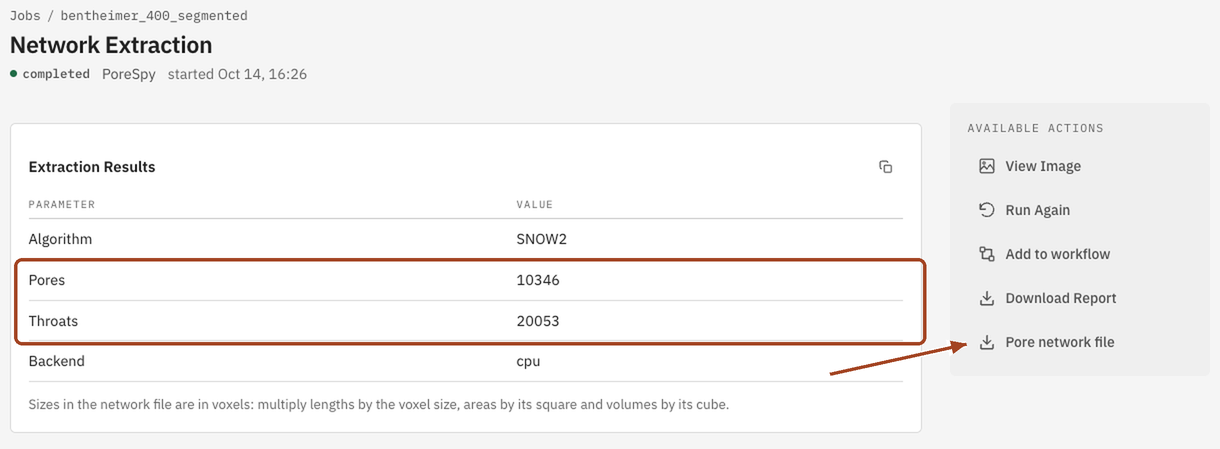
Networks: Network Extraction beta
A pore network for your own network models. Network Extraction splits the pore space into pores joined by throats and returns the network with every pore's and throat's size and position. See Network Extraction.
Visualize: 3D Visualization
See it all in 3D. Once the permeability job has finished, open 3D Visualization, choose the image and select Run. When the viewer is ready, select Open 3D viewer: turn the pore space around, slice through the pressure field, and switch to Flow to see streamlines through the pores. See 3D Visualization.
In progress
Screenshot: the 3D viewer in its browser tab showing the Flow view, streamlines coloured by velocity through the translucent solid. Arrows to the view toggle (Structure, Orthoslices, Flow) and the camera toolbar.
7. Read the results
Open Jobs to see every job and its state. While a job waits or runs, its page says so and updates by itself; Job states explains each one. When it completes, the job page shows its tables and charts, and the Jobs list shows the number that sums it up, such as the permeability or the median pore radius. Tools that save 3D fields, such as permeability, show them in a slice viewer: click a point on one slice to move the other two there. Each tool's page in the User guide explains its results.
8. Download and export
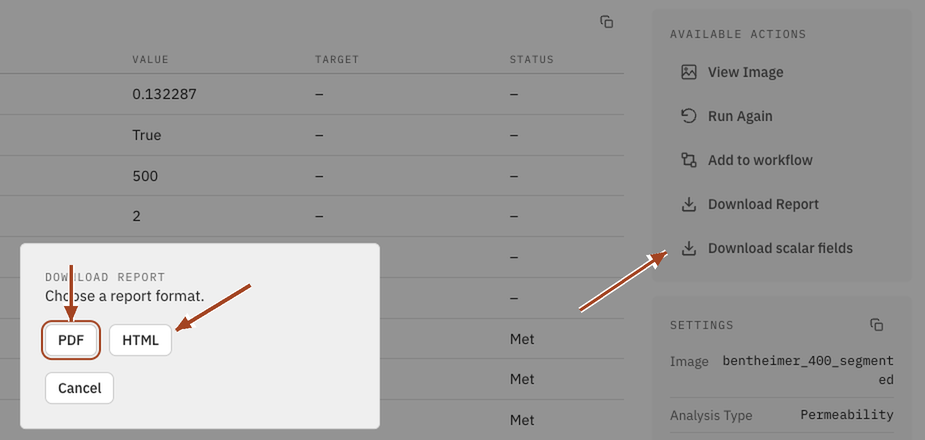
Keep what you need. On any completed job, Download Report gives a PDF or HTML report with its settings, tables and charts, and Download scalar fields saves 3D fields such as velocity or pressure for your own software. To take an image itself elsewhere, Export writes it as VTK image data for ParaView, an STL surface mesh or a NumPy archive. To compare several results, tick them in Jobs and select Export results. See Jobs and results.
Where next
- The User guide has a page for every tool, with all its settings.
- The Scientific reference explains what each tool computes, and how.
- The Technical reference explains how jobs run and what their states mean.