X-Ray View
X-Ray View projects a segmented image along each axis, the way a radiograph records how much material a beam passes through: lines through more solid look darker. Use it to spot density variation and layering at a glance, or to compare an image with a radiograph of the same material. It's a rendering, not a simulation of the instrument.
- Find it Tools › Visualize › X-Ray View
- Needs a segmented 3D image, up to 1024³ voxels
- Returns three projections, one along each axis, stored with the image and shown in a viewer
- Runs on CPU
- Science X-Ray View
Run it
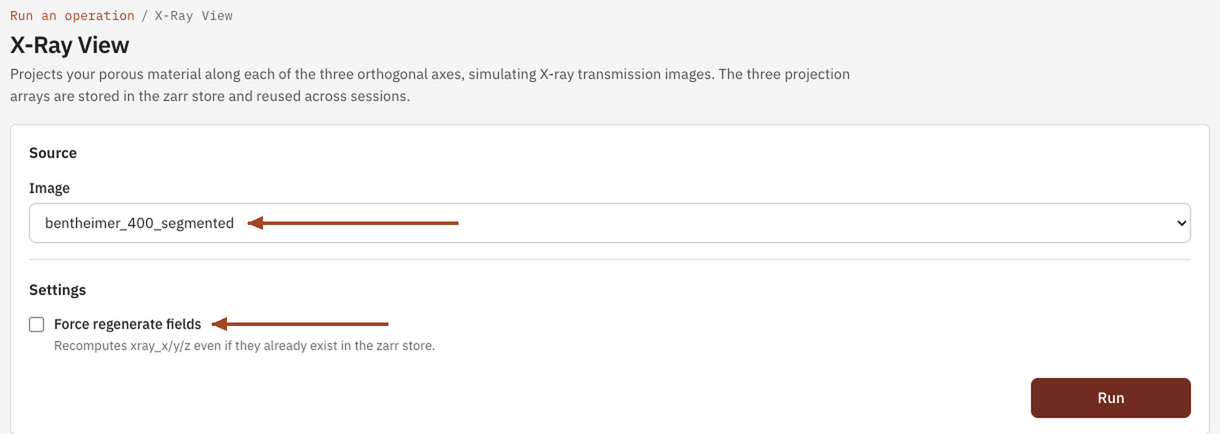
- Open Tools, then Visualize, and select X-Ray View. You can also start from an image's page, which fills in the image for you.
- Under Source, choose the Image, or a batch to run every image in it.
- Leave Force regenerate fields unticked unless you want to rebuild projections the image already has.
- Select Run. The job page opens and follows the job until it finishes.
Settings
| Setting | Default | Range | What it does |
|---|---|---|---|
| Image | your team's images and batches | The image to project, or a batch to run one job per image. | |
| Force regenerate fields | off | on, off | Rebuilds the projections even if the image already has them. |
The projections are stored with the image, not the job. When an earlier X-Ray View run on the image completed and its projections are still there, a new run reuses them unless you tick Force regenerate fields. Saving an edit over the image removes them, and the next run rebuilds them.
Results
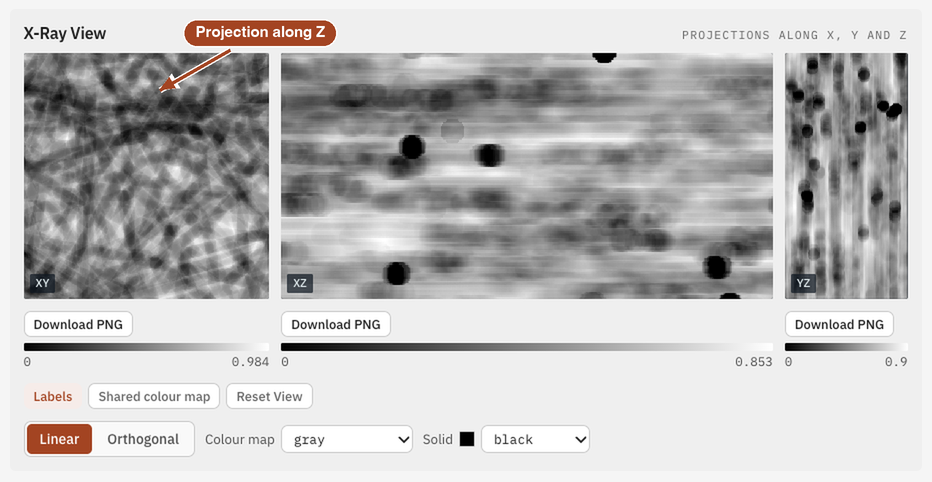
The job page shows the X-Ray View as three fixed panels, Projections along x, y and z: XY is the projection along Z, XZ along Y and YZ along X. Each line through the sample is shaded by the amount of solid on it, so dense regions are dark and the densest line is black.
Common problems
- The run finished at once and nothing looks new. The image already had its projections, and the run reused them. Tick Force regenerate fields to rebuild them.
- A layer you know is there doesn't show. A projection adds up everything along its axis, so a layer normal to that axis darkens every line equally. Look at the projections along the other two axes, where it shows as a band.
- Comparing two images. Each projection is scaled by its own densest line, so compare grey levels within one image, not between images.
- The image is too large. X-Ray View takes up to 1024³ voxels. Trim the image first.
Science
How the projections are computed, and how they differ from real attenuation: X-Ray View in the Scientific reference.