Noise Filtering
Noise Filtering smooths a greyscale scan without segmenting it, so a threshold or a trained classifier sees cleaner grey levels. Filter first, inspect the result, then segment the filtered copy with Basic Thresholding or Interactive Segmentation.
- Find it Tools › Segmentation › Noise Filtering
- Needs a greyscale 3D image
- Returns a filtered greyscale image in the original intensity units, as a new image or over the original
- Runs on CPU
- Science Noise Filtering
Run it
- Open Tools, then Segmentation, and select Noise Filtering. You can also follow the Noise Filtering link on the Basic Thresholding or Interactive Segmentation page, which carries the image over.
- Under Source, choose the Image. Only greyscale images are listed.
- Under Filter settings, pick the Filter and adjust its settings.
- Pick the Plane (XY, XZ or YZ) above the preview. The filter works slice by slice in this plane, in the preview and in the full run. Choose a Slice index to inspect.
- Compare the original and the Filtered slice in the preview by dragging the divider. It updates as you change the settings.
- Under Output, choose Save as new image or Overwrite original, and for a new image, optionally a New image name (optional). It defaults to the source's name followed by
_filtered. - Select Run. The job page opens and follows the job until it finishes.
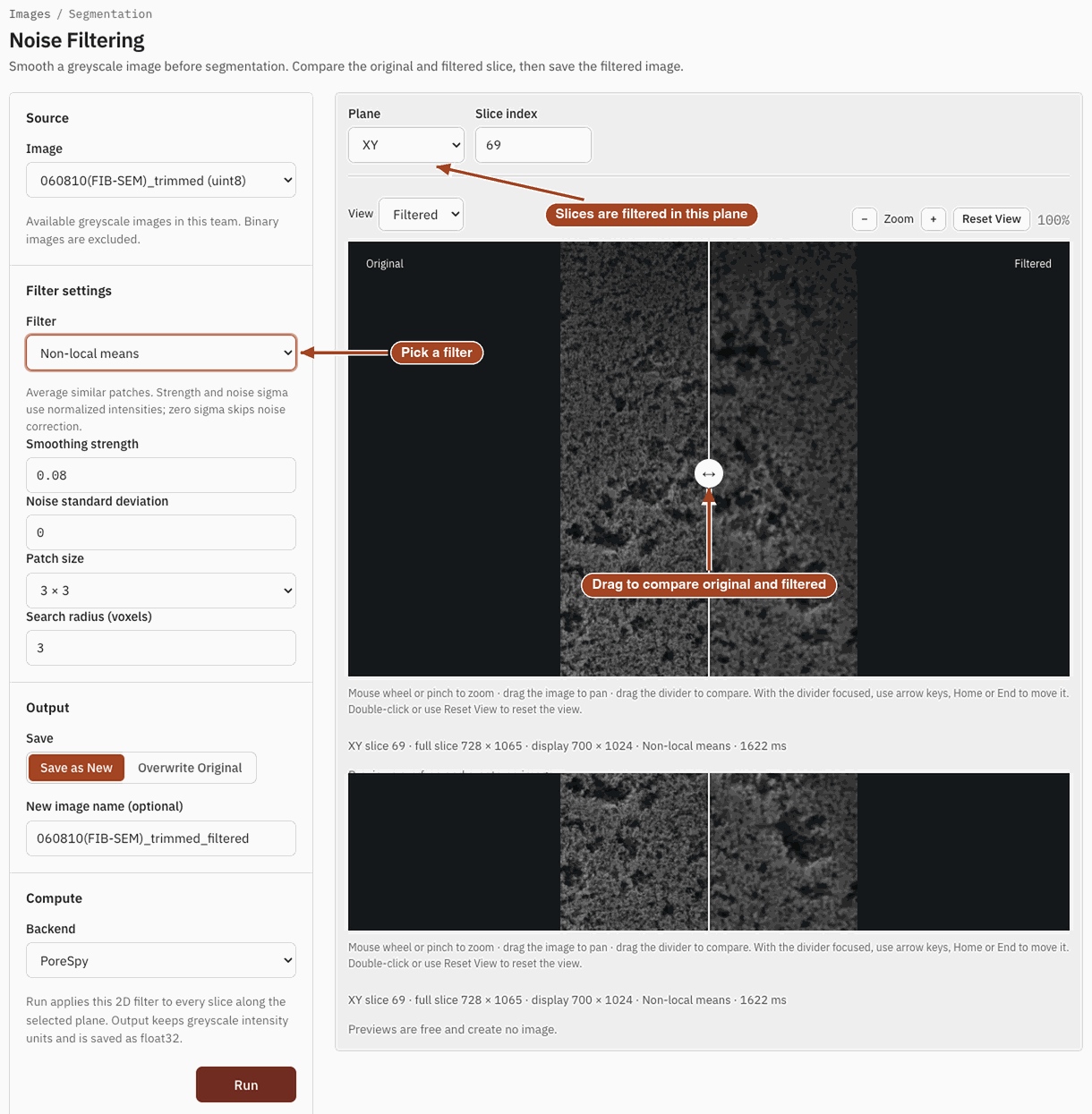
Settings
| Setting | Default | Range | What it does |
|---|---|---|---|
| Image | your team's greyscale images | The scan to filter. | |
| Filter | Gaussian | Gaussian, Median, Total variation, Non-local means | Which filter runs. Only the chosen filter's settings show. |
| Sigma (voxels) | 1 |
0.1–8 | Gaussian. Larger sigma gives stronger smoothing. |
| Neighbourhood size | 3 × 3 | 3 × 3, 5 × 5, 7 × 7 | Median. Removes isolated bright or dark speckles with a square window. |
| Weight | 0.1 |
0.001–1 | Total variation. Larger weights smooth more; edges are kept. |
| Stopping tolerance | 0.0001 |
10⁻⁶–0.01 | Total variation. How settled the result must be before it stops. |
| Maximum iterations | 200 |
1–500 | Total variation. The most iterations it runs. |
| Smoothing strength | 0.08 |
0.001–1 | Non-local means. How strongly similar patches are averaged. |
| Noise standard deviation | 0 |
0–1 | Non-local means. The noise level, as a fraction of the image's intensity range; 0 skips the noise correction. |
| Patch size | 3 × 3 | 3 × 3, 5 × 5, 7 × 7 | Non-local means. The size of the patches compared. |
| Search radius (voxels) | 3 |
1–7 | Non-local means. How far from each pixel to look for similar patches. |
| Plane | XY | XY, XZ, YZ | The plane of the slices filtered, in the preview and in the run. |
| Slice index | the middle slice | any slice of the image | Which slice the preview shows. It doesn't change the result. |
| Save | Save as new image | Save as new image, Overwrite original | Whether the run creates a new image or replaces the source. |
| New image name (optional) | source name + _filtered |
The name of the new image. | |
| Backend | PoreSpy | The software that runs the job. |
Results
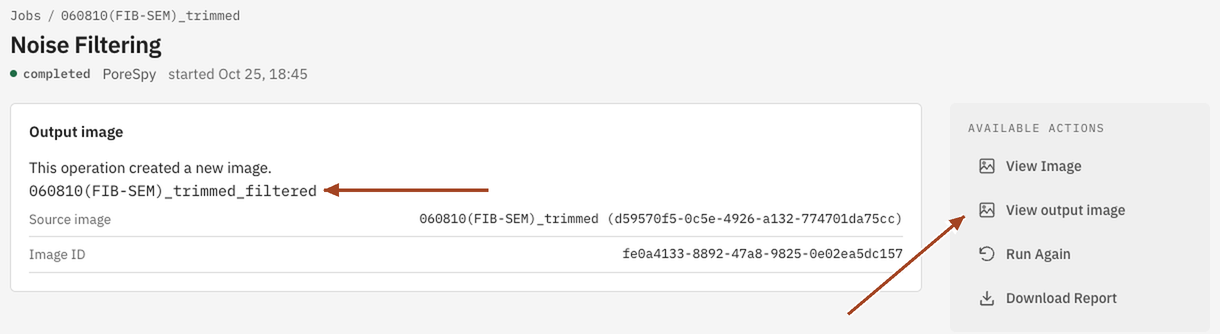
The run filters every slice of the volume along the chosen plane and saves the result as a greyscale image in single precision, in the source's intensity units. The job page shows the Output image, or says the original was updated in place, and View output image under Available Actions opens it. Segment it next.
Common problems
- Fine pores disappear. The filter is too strong for the pore size. Lower Sigma (voxels) or Weight, or switch to Non-local means, which keeps fine texture that local filters blur.
- Streaks between slices. Each slice is filtered on its own, so slice-to-slice noise can remain. Filtering in a different Plane can help when the streaks run along one axis.
- You overwrote the original. Overwrite original replaces the source, and any fields its earlier simulations saved go with it; their numbers remain. Use Save as new image while you try settings.
Science
What each filter does and how intensities are scaled: Noise Filtering in the Scientific reference.