Resize
Resize makes a copy of an image at any new resolution by interpolation: coarser, to fit a large sample into a simulation, or finer, to give a solver more voxels across thin throats. A binary image keeps its porosity.
- Find it Tools › Preparation › Resize
- Needs a 3D image, binary or greyscale
- Returns a copy at the new resolution, with the voxel size scaled to match; binary stays binary with the same porosity, greyscale comes back as fractional intensities
- Runs on CPU
- Science Resize
Run it
- Open Tools, then Preparation, and select Resize.
- Under Source, choose the Source image.
- Under Settings, set the Zoom factor: below 1 shrinks the image, above 1 enlarges it. Below the settings, the page shows the output's dimensions, number of voxels, data type and voxel size.
- On the right, the Slice preview compares a slice of the original with the same slice resized. Pick the Plane and Slice index to look at. The preview resizes one slice only, so it's an approximation; it creates no image.
- Under Output, choose Save as New and a New image name, or Overwrite Original.
- Select Run. The job page opens and links to the new image when it's done.
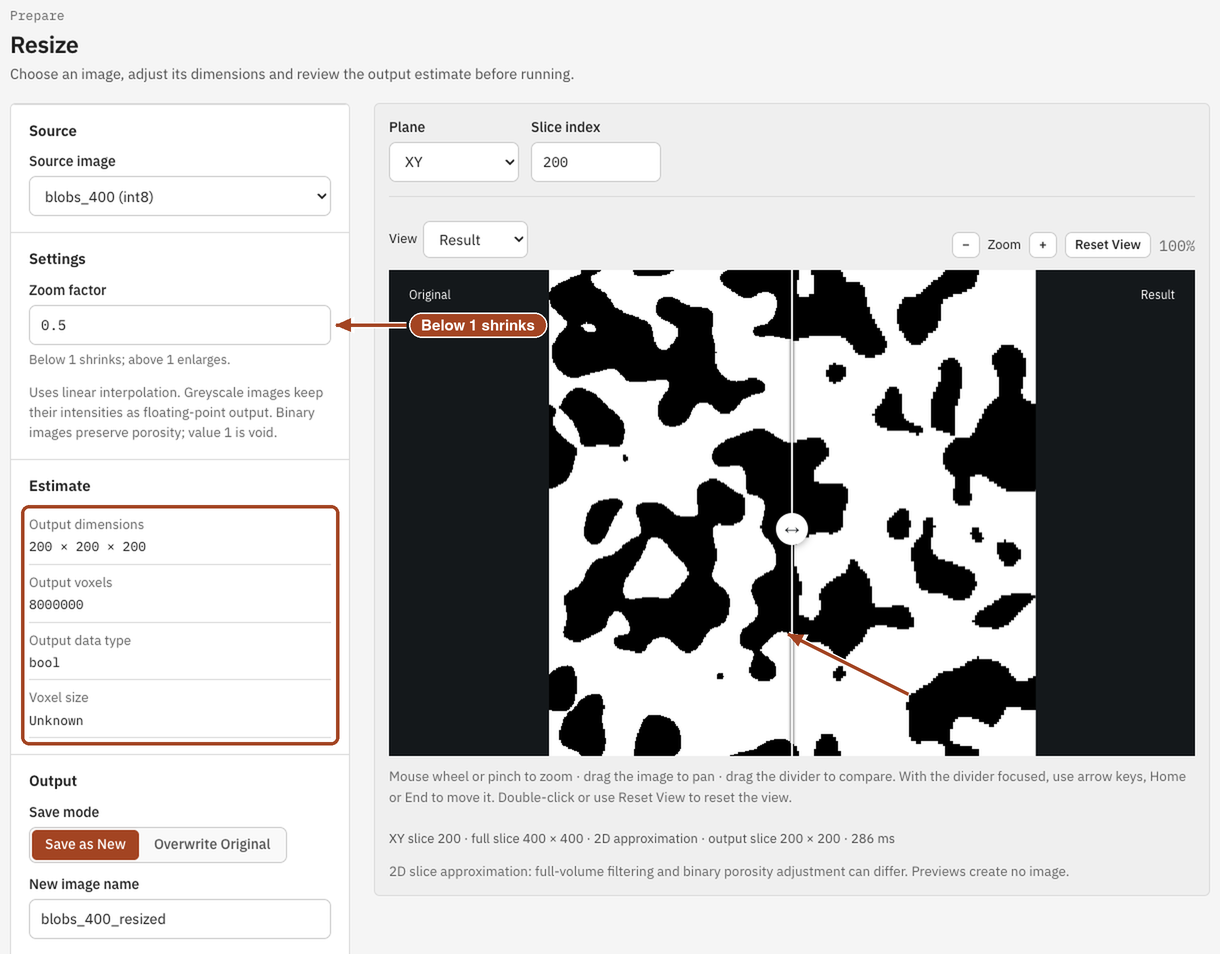
Settings
| Setting | Default | Range | What it does |
|---|---|---|---|
| Source image | your team's ready images | The image to resize. | |
| Zoom factor | 0.5 | more than 0 | The scale along every axis. Each side of \(N\) voxels becomes \(N\) times the factor, rounded to the nearest whole number. |
| Plane | XY | XY, XZ, YZ | The slice the preview shows. |
| Slice index | the middle slice | within the image | Which slice of that plane the preview shows. |
| Save mode | Save as New | Save as New, Overwrite Original | Whether to keep the original and add a resized copy, or replace it. |
| New image name | the image's name with _resized |
up to 200 characters | Save as New only. |
Whether the image is resized as binary or greyscale follows from its values: a segmented image, 0/1 or 0/255 alike, is resized as binary and comes back as a boolean image; any other image is resized as greyscale.
Results
The job page shows the Resized image table: the Source, Method, Output dimensions, Voxel size at creation, Zoom factor and Interpolation order. For a binary image it adds the Source porosity, Output porosity and Porosity error, with the Target pore count and Actual pore count; for a greyscale image, the Output data type. An Output image panel links to the new image.
In progress
Screenshot: a completed Resize job page for a binary image. Arrows to the Output porosity, Porosity error and Actual pore count rows of the Resized image table, and the View output image button.
Common problems
- The greyscale result is fractional. A greyscale image keeps its interpolated intensities as decimals. Segment the resized image afterwards.
- Enlarging didn't add detail. Upsampling adds voxels, not information: throats get more voxels across, but their shape is only as good as the original scan.
- Connectivity or transport changed. Resizing keeps porosity, not connectivity, surface area or transport properties. Compare a key result on both images before relying on the copy.
- The image is too large. The page says, below the settings, when the image or its output is beyond what Resize takes. Trim or downsample it first.
- Overwrite Original is refused. The image has jobs running on it. Wait for them to finish, or save as new.
Science
How the filter, the interpolation and the porosity-preserving step work: Resizing in the Scientific reference.