3D Visualization
3D Visualization opens an interactive 3D view of an image in your browser: the pore–solid surface you can turn and zoom, slices through the fields a simulation saved, and streamlines of a flow field. The view is rendered on a server GPU and streamed to your browser, so a large image needs no graphics power on your own computer. Nothing is computed or saved; it's a way to look.
- Find it Tools › Visualize › 3D Visualization
- Needs a segmented 3D image that has finished uploading. Largest image: In progress
- Returns a viewer session in a browser tab, for up to 24 hours; nothing is saved
- Runs on GPU
Run it
- Open Tools, then Visualize, and select 3D Visualization.
- Under Source, choose the Image. Each entry shows the image's size and the fields it has, such as
sample (200×200×200) — pressure · velocity_x. - Under Settings, set the Maximum session duration (hours).
- Select Run. The job page shows Starting viewer… while the server starts, which takes 2–5 minutes, then Viewer is ready.
- Select Open 3D viewer on the job page. It opens in a new browser tab.
- When you're done, close the viewer tab or select Shut down server on the job page.
One 3D session can run for a team at a time, and that includes a ParaView Server session. While one runs, the launch page links to it with Go to running session instead of offering a new one.
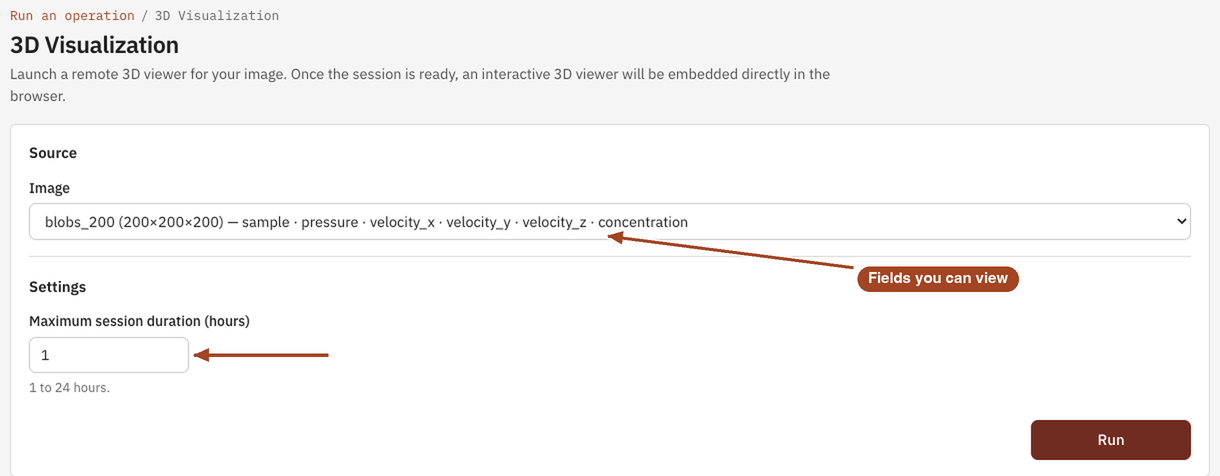
Settings
| Setting | Default | Range | What it does |
|---|---|---|---|
| Image | your team's uploaded images | The image to view, with the fields its completed simulations saved. | |
| Maximum session duration (hours) | 1 |
1–24 | The longest the session can run. The session ends when it's reached. |
Results
The viewer opens on the image's Structure and offers the other views when the image has the data they need. A toggle at the top switches between them.
| View | What it draws | Needs |
|---|---|---|
| Structure | The pore–solid surface, closed where grains meet the image's faces | Any segmented image |
| Orthoslices | Three orthogonal slices (YZ, XZ and XY) through a saved field, each shown or hidden and moved with its own slider, with a colour map and a Min–Max colour range | A field saved by Permeability (pressure, velocity magnitude), Diffusivity (concentration) or Conductivity (potential) |
| Flow | Streamlines through the pore space, started from pore voxels at the inlet face and coloured by velocity magnitude, with the grains drawn as a translucent surface | The velocity a Permeability job saved |
| Network beta | The pores and throats of the image's most recent completed network extraction, sized and coloured by a property you choose | A completed network extraction on the image |
For each simulation and flow direction, the views use the image's most recent completed result. Fields load one at a time, when you pick them. If a field can't be shown, for example because it's no longer stored, the side panel lists it with the reason, and the rest of the view still works.
In every view, the toolbar turns the camera to an isometric view or to look along +X, +Y or +Z, resets it, and takes a screenshot you can download as a PNG. Drag with the left button to rotate, scroll to zoom and drag with the right button to pan.
In progress
Screenshot: the 3D viewer tab on an image with a completed permeability result, in the Flow view with streamlines coloured by velocity magnitude. Arrows to the view toggle at the top, the camera buttons in the toolbar and the screenshot button.
The session ends, and its server stops, when the first of these happens:
- you close the viewer tab, or leave the page;
- you select Shut down server on the job page;
- the maximum session duration is reached.
The job then completes. A session you shut down before its viewer was ready ends as cancelled.
Common problems
- The job page waits with "Waiting for a GPU to become available." All suitable GPUs are busy. The session starts when one frees up.
- The launch page shows "A 3D render session is already running for this team." Someone on your team has a 3D Visualization or ParaView Server session open. Select Go to running session, or shut it down first.
- A field you expected isn't offered. The views use each simulation's most recent completed result on this image, and fields that are no longer stored can't be shown. Run the simulation again to see its fields.
- The viewer closed while you were away. Leaving the viewer page or reaching the maximum duration ends the session. Run it again.
- You want to keep a field for other software. The viewer saves nothing. Export the field, or open it in ParaView Server.