Export
Export writes an image, or the 3D fields a result saved, to a file you download: a voxel image or a field for ParaView, a surface mesh for CAD or 3D printing, or an archive of arrays for your own scripts.
- Find it Tools › Image Management › Export, Download image on an image's page, or Download scalar fields on a result's page
- Takes an image or a batch, or a completed result that saved fields
- Returns a file to download: VTK image data, an STL mesh or a NumPy archive, or a Zarr archive
- Runs on CPU
Run it
To export an image:
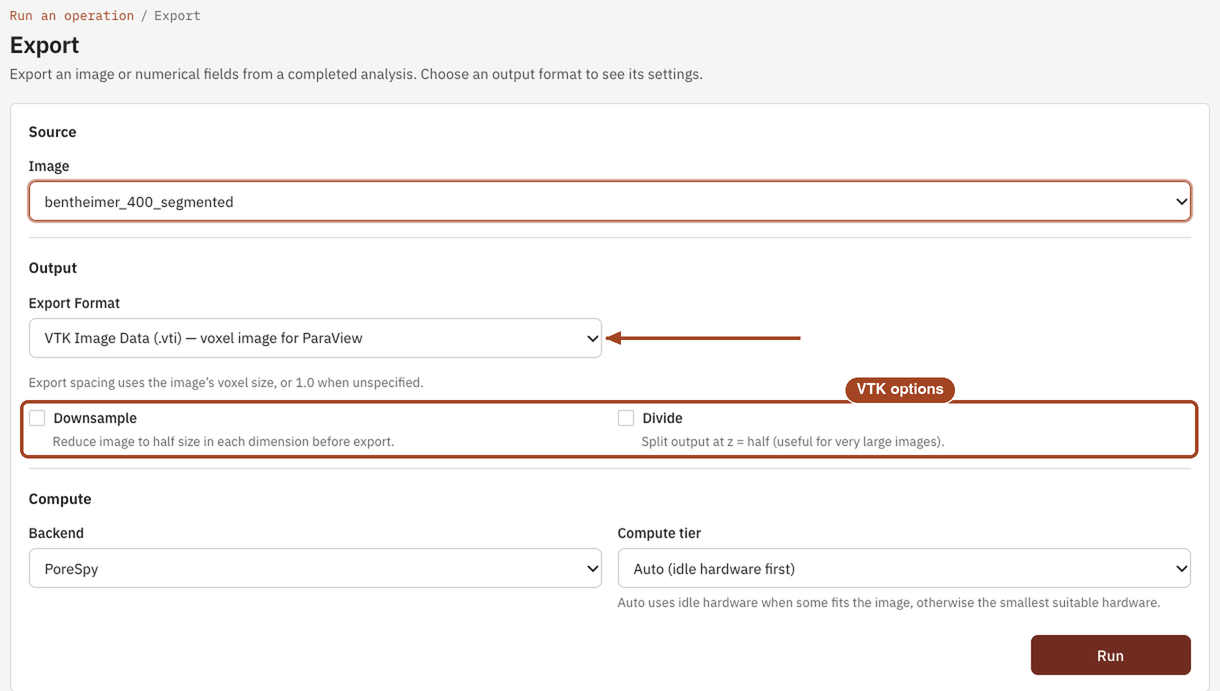
- Open Tools, then Image Management, and select Export. Download image on an image's page opens the same form with the image chosen.
- Under Source, choose the Image, or a batch to export every image in it.
- Under Output, choose the Export Format, and the options that appear for it.
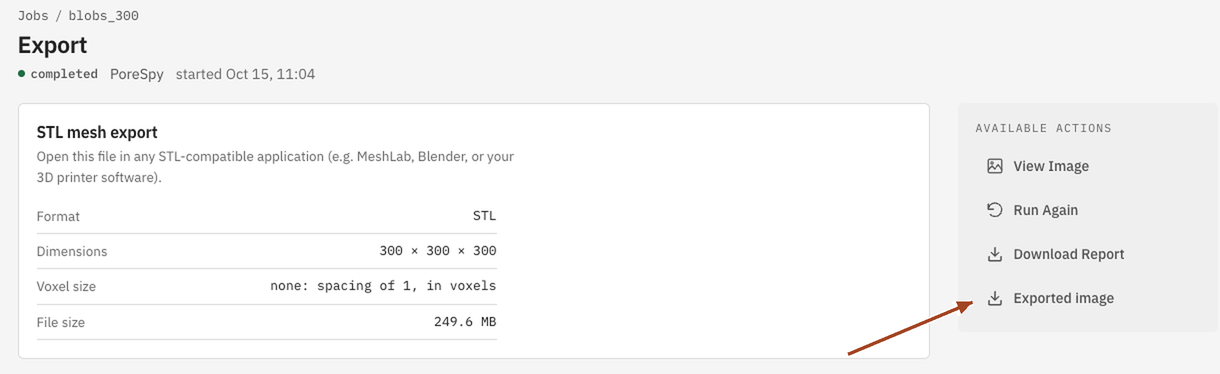
- Select Run. The export runs as a job; when it completes, select Exported image on the job page to download the file.
To export the fields a result saved, such as a velocity or concentration field:
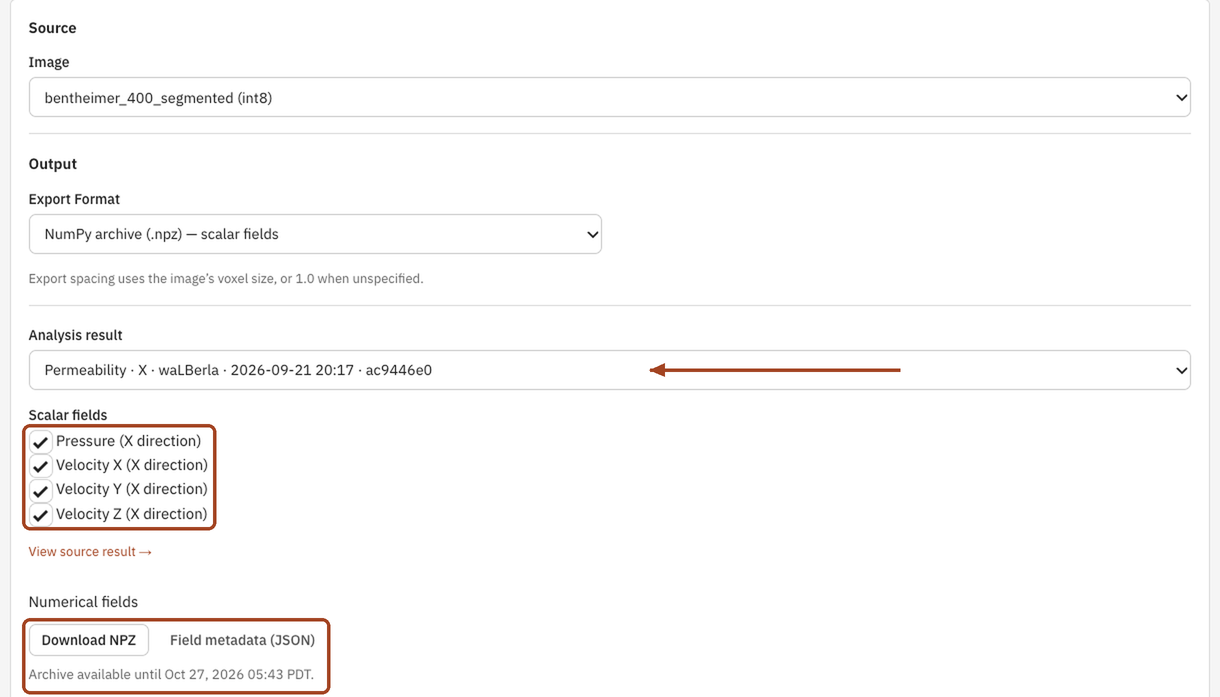
- On the result's job page, select Download scalar fields. Or open Export, choose an image, and pick a scalar-field Export Format.
- Choose the Analysis result, and tick the Scalar fields you want. All are ticked to start with.
- Select Prepare download. Preparation runs in the background, so you can leave the page; the download appears on the same page and in Jobs.
- Select Download NPZ or Download VTK, and Field metadata (JSON) for a description of each field and its stored units.
Settings
| Setting | Default | Range | What it does |
|---|---|---|---|
| Image | your team's images and batches | What to export. | |
| Export Format | VTK Image Data (.vti) | see Formats | The file to write. |
| Downsample | off | on, off | VTK image only. Halves the image along each axis before export. Can't be combined with Divide. |
| Divide | off | on, off | VTK image only. Splits the image at the middle Z slice into two VTK files, downloaded together as a ZIP archive, for very large images. Can't be combined with Downsample. |
| Meshing method | Direct voxel faces | Direct voxel faces, Marching cubes | STL only. How the surface is built. |
| Mesh representation | OpenSTL | OpenSTL, scikit-image, PyVista | STL only. The library that writes the mesh; all save a binary STL. |
| Analysis result | completed results that saved fields | Scalar fields only. The result whose fields to export. | |
| Scalar fields | all | the result's fields | Scalar fields only. The fields to put in the file. |
Formats
The voxel size of the image is written into every VTK file as its spacing, or 1 when the image has none. It's the voxel size at the time of export: correcting it later doesn't change a file you've already downloaded.
VTK Image Data (.vti) — voxel image for ParaView. The image's voxels on a regular grid, for ParaView and other VTK software.
| Setting | Value |
|---|---|
| Downsample | off, or half size along each axis |
| Divide | off, or two files split at the middle Z slice, in one ZIP archive; not with Downsample |
| Spacing | the image's voxel size |
STL Mesh (.stl) — for 3D printing / CAD. The pore–solid surface as a triangle mesh, saved as a binary STL.
| Setting | Value |
|---|---|
| Image | a segmented image; the other formats take any image |
| Meshing method | the faces of the solid voxels, or a smooth Marching cubes surface |
| Mesh representation | OpenSTL, scikit-image or PyVista |
NumPy archive (.npz) — scalar fields. The fields you ticked from one result, one array per field, on the image's grid. Values are written as stored, including the gaps in the solid. A separate JSON file describes each field and its stored units.
| Setting | Value |
|---|---|
| Fields | any of the result's fields |
| Available for | 24 hours after it's prepared; an expired archive can be prepared again |
VTK Image Data (.vti) — scalar fields for ParaView. The same fields as one VTK file, with the image's voxel size as its spacing, ready to open in ParaView or in ParaView Server.
| Setting | Value |
|---|---|
| Fields | any of the result's fields |
| Available for | 24 hours after it's prepared |
Zarr archive (.zarr.zip) — native scalar fields. The stored arrays and their metadata in one ZIP, without conversion or recompression. Open it directly with Zarr, or extract it as a folder. Fields PoreStore derives when you read a result, such as a velocity magnitude, aren't stored and so aren't included; use NPZ or VTK for those.
| Setting | Value |
|---|---|
| Fields | the result's stored fields |
| Available for | 24 hours after it's prepared |
Results
An image export completes as a job, and its page offers Exported image to download the file. A divided VTK export downloads as a ZIP archive of the image's two halves: unzip it and open both files together in ParaView, where each half sits in its place in the image. A field export shows Download NPZ, Download Zarr or Download VTK, with the time it's available until.
Common problems
- A result's fields aren't listed. Only completed results that saved fields can be exported, and a result whose image was saved over, or deleted, no longer has them. Run the analysis again to get its fields back.
- The archive has expired. Prepared field downloads last 24 hours. Select Prepare download again.
- ParaView shows the wrong size. The image had no voxel size, so the spacing is 1. Set the voxel size on the image page and export again.
- The file is too large to open. Turn on Downsample or Divide, not both, or trim the image first.