Image Cleaning
Image Cleaning removes features of a segmented image that can't take part in transport: pores that don't connect across the sample, and specks of solid floating in the pore space. Use it after segmenting, to analyse the connected pore space rather than every pore.
- Find it Tools › Preparation › Image Cleaning, or Prepare on an image's page
- Needs a segmented 3D image, or a batch of them
- Returns the cleaned image, saved over the original or as a new image
- Runs on CPU
- Science Image Cleaning
Run it
- Open Tools, then Preparation, and select Image Cleaning.
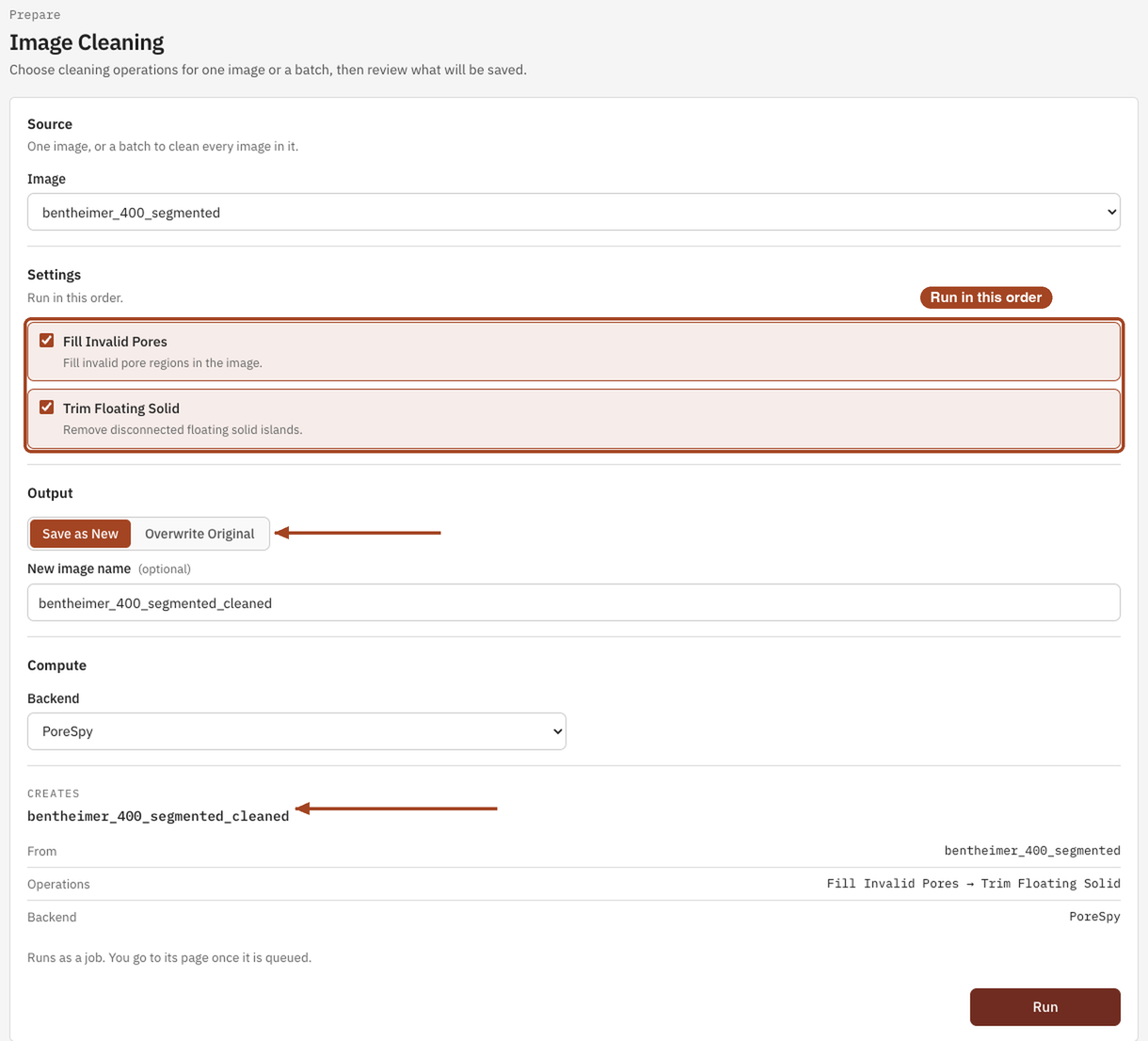
- Under Source, choose the Image, or a batch to clean every image in it.
- Under Settings, tick Fill Invalid Pores, Trim Floating Solid, or both. They run in that order.
- Under Output, choose Overwrite Original or Save as New, and for a new image, its New image name. The panel below lists the images the job will create or overwrite.
- Select Run. The job page opens; a batch makes one job per image and takes you to Jobs.
Settings
| Setting | Default | Range | What it does |
|---|---|---|---|
| Image | your team's images and batches | The image to clean, or a batch to clean one by one. | |
| Fill Invalid Pores | off | on, off | Turns into solid every pore cluster that doesn't join two opposite faces of the image: closed pores and dead-end clusters. |
| Trim Floating Solid | off | on, off | Turns into pore every solid cluster that touches no face of the image. |
| Save mode | Overwrite Original | Overwrite Original, Save as New | Whether to replace the image or keep it and add a cleaned copy. |
| New image name | the image's name with _cleaned |
up to 200 characters | Save as New only. |
| Backend | The software that cleans the image, PoreSpy. |
Tick at least one operation.
Results
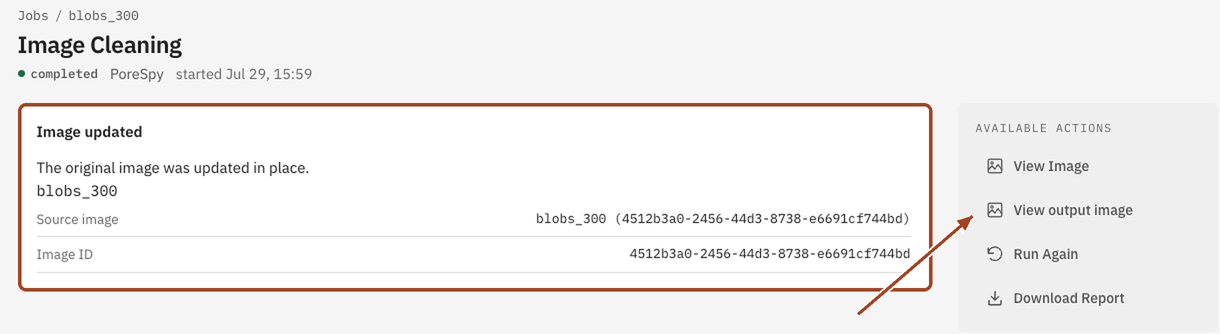
The job page shows an Output image panel, or Image updated when you overwrote the original, with View output image. The cleaned image's porosity is measured again, so compare it with the original's to see how much pore space was disconnected.
Common problems
- Saving over the image removed its 3D fields. Overwriting an image discards the fields its earlier results saved, such as velocity or concentration, though their numbers stay. Use Save as New to keep them.
- Almost all the pore space disappeared. No pore cluster joins two opposite faces, so Fill Invalid Pores filled them all. Check the segmentation, or run a Connectivity Analysis on the image.
- Porosity changed more than expected. Both operations change porosity on purpose: cleaning moves an image from total towards connected porosity.
Science
How each operation decides which clusters to keep, and what cleaning does to porosity and transport: Image Cleaning in the Scientific reference.