Jobs and results
Every time you select Run on a tool, PoreStore creates a job: one run of that tool on one image, with the settings you chose. A batch creates one job per image. Jobs belong to your team, so everyone in it sees the same jobs and results.
- Find it Jobs, in the top bar
- Shows every job your team has run, newest first, with its status and headline result
- States pending, queued, processing, completed, failed or cancelled: see Job states
The Jobs list
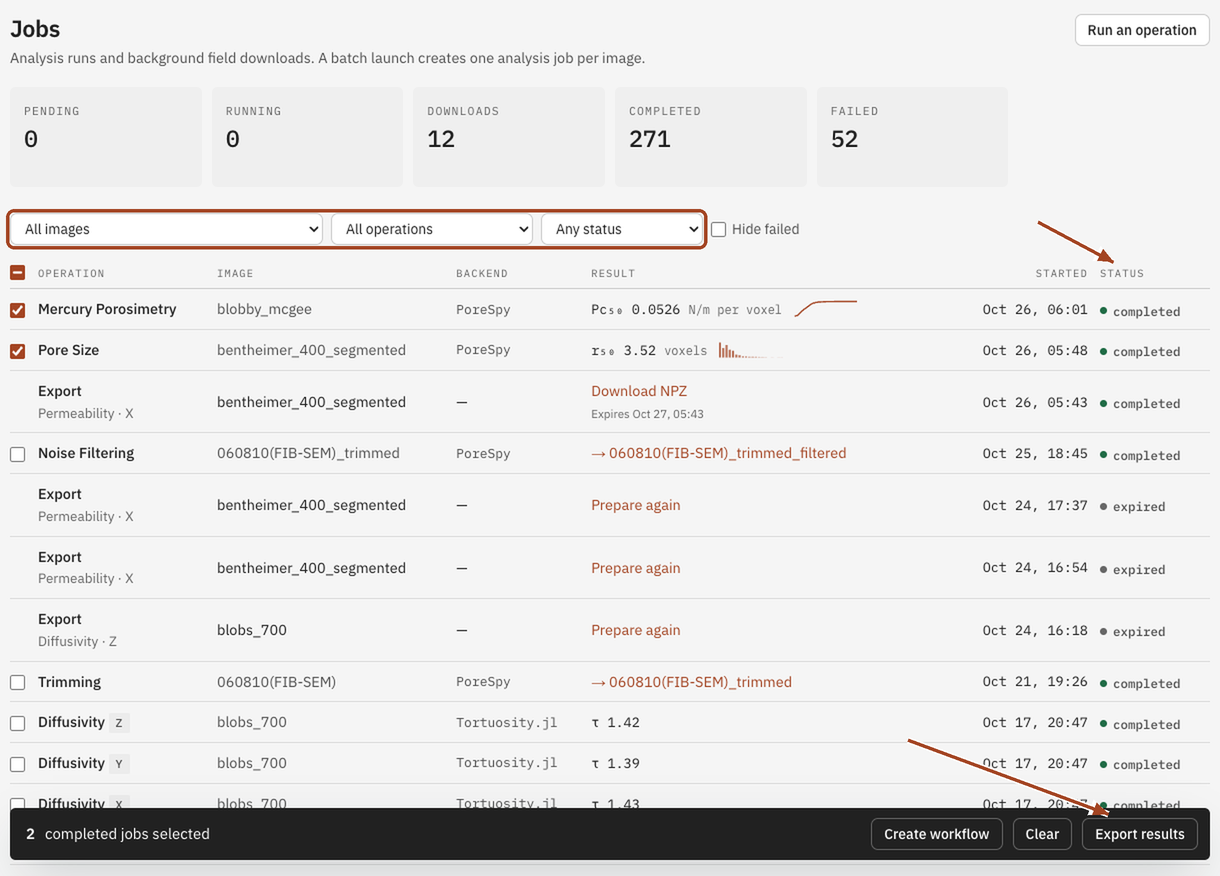
Jobs opens on an overview of what's running and what just finished; the side navigation switches between Running, Completed and Failed jobs. Narrow the list with All images, All operations and Any status, or tick Hide failed. The list also shows field downloads you've asked for, while they're prepared.
Select a job to open its page. Tick several completed jobs and select Export results to put their results side by side on one page, which you can download as a report.
The job page
A job's page shows its status at the top and follows the job until it finishes, so you can leave it open or come back later.
- While it waits or runs, the page says whether the job is waiting for hardware or running. Until it starts, Cancel job stops it. What each state means, and who is holding the job, is in Job states.
- When it completes, the page shows the tool's tables, charts and, for tools that save them, a slice viewer for the 3D fields. The tool's headline number, such as a tortuosity factor or a median pore radius, shows in the Jobs list and the report. Each tool's page in this guide describes its results.
- If it fails, the page says what went wrong and what to change, with Technical details underneath. If it keeps happening, contact us with the Job ID.
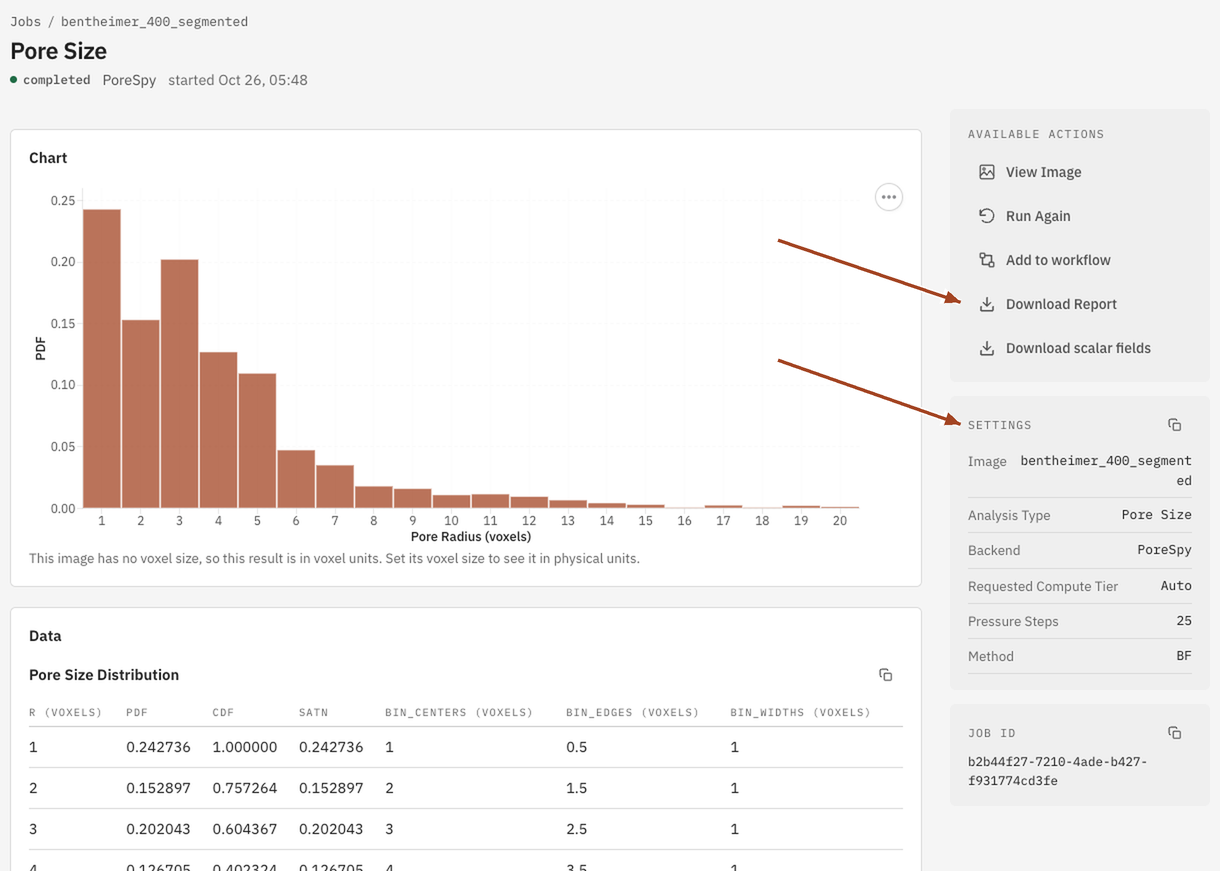
The side column lists the job's Settings, so you always know exactly how a result was made.
Keep and share results
From Available Actions on a completed job:
- Download Report: the result as a PDF or HTML report, with its settings, tables and charts.
- Download scalar fields: the 3D fields the job saved, such as a velocity or concentration field, as a file for your own software. See Export.
- View output image: for tools that make a new image, such as segmentation or cleaning.
- Run Again: the same tool, with this image and direction already chosen.
Tables on a result page have a copy button, for pasting into a spreadsheet.
Results and the voxel size
Every result is computed in voxels and shown in physical units using the image's current voxel size. If you set or correct an image's voxel size later, every result on that image changes units at once, without running anything again. Without a voxel size, lengths show in voxels. See Images and, for why this works, Units and voxel size.