Import
Import turns a surface mesh into a 3D image in your library: a CAD model of a filter, a packing of particles, or a printed lattice. The mesh's inside becomes solid and everything around it pore, ready for any tool.
- Find it Tools › Image Management › Import
- Takes an STL surface mesh up to 250 MB
- Returns a new binary image, pore 1 and solid 0, with a voxel size taken from the mesh
- Runs on CPU
Run it
- Open Tools, then Image Management, and select Import.
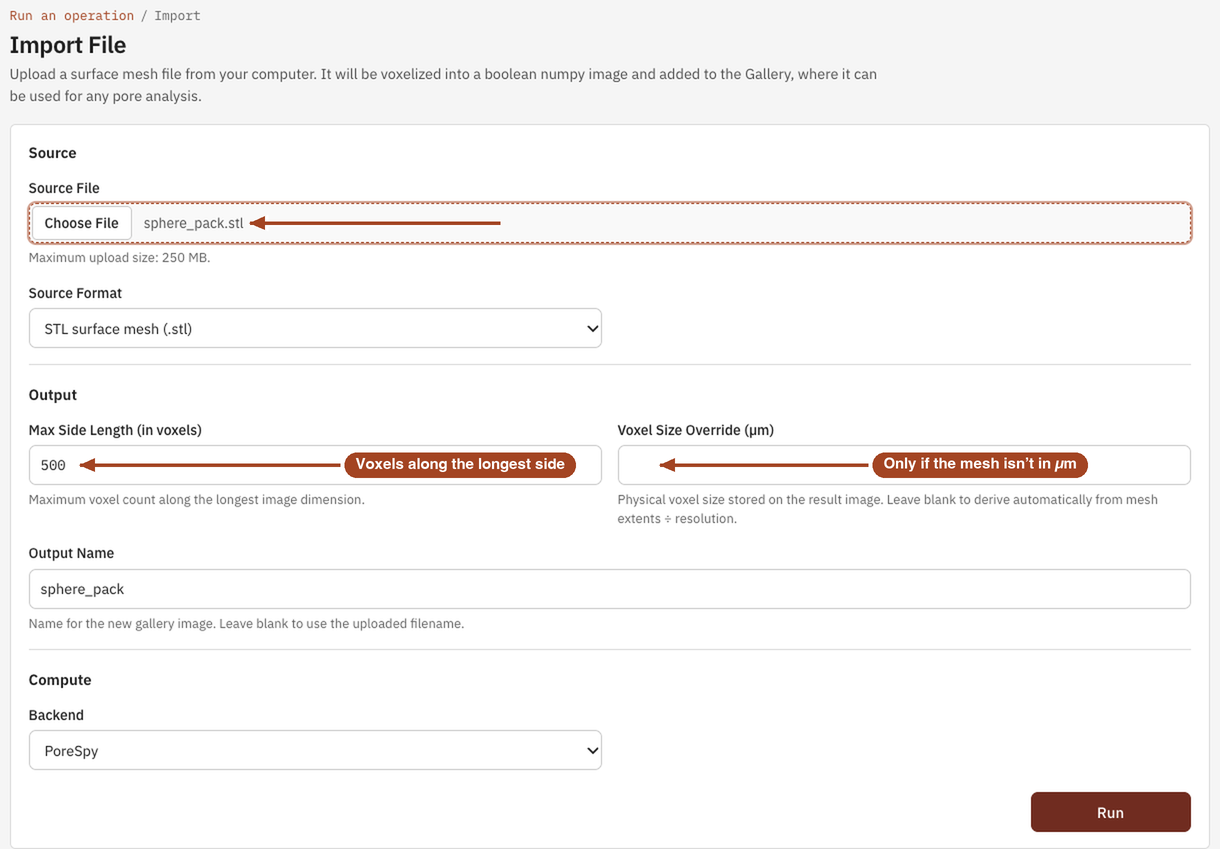
- Under Source, choose the Source File from your computer. The Source Format is STL surface mesh (.stl).
- Under Output, set Max Side Length (in voxels): how many voxels the mesh's longest side gets. Give a Voxel Size Override (µm) if the mesh isn't drawn in micrometres, and an Output Name.
- Under Compute, leave the Backend as it is.
- Select Run. The file uploads, with a progress bar, and the import runs as a job. When it completes, the job page links to the new image.
Settings
| Setting | Default | Range | What it does |
|---|---|---|---|
| Source File | an .stl file up to 250 MB |
The mesh to voxelise. | |
| Source Format | STL surface mesh (.stl) | STL | The mesh format. |
| Max Side Length (in voxels) | 500 | 10–1000 | The number of voxels along the longest side of the mesh's bounding box. The other sides get as many as their length needs. |
| Voxel Size Override (µm) | empty | a positive number | The voxel size stored on the new image. Left empty, it's the mesh's longest side divided by the side length, reading the mesh's units as micrometres. |
| Output Name | the file name | up to 200 characters | The name of the new image. |
| Backend | The software that voxelises the mesh. |
Formats
An STL surface mesh, in ASCII or binary. A file holding several bodies is joined into one mesh first.
| Aspect | Setting |
|---|---|
| Voxel grid | A cube of side \(L/N\), where \(L\) is the longest side of the mesh's bounding box and \(N\) is Max Side Length (in voxels) |
| Inside the mesh | Voxels on the surface are marked, then the enclosed volume is filled, and all of it becomes solid (0) |
| Outside the mesh | Pore (1), including the space between bodies |
| Voxel size | \(L/N\) in the mesh's units, read as micrometres, unless Voxel Size Override (µm) is set |
| Limits | 250 MB per file; a file with no geometry, or a mesh with no size, is refused |
A mesh that isn't closed can't be filled, so only its surface voxels become solid. Close holes in your CAD tool before exporting.
Results
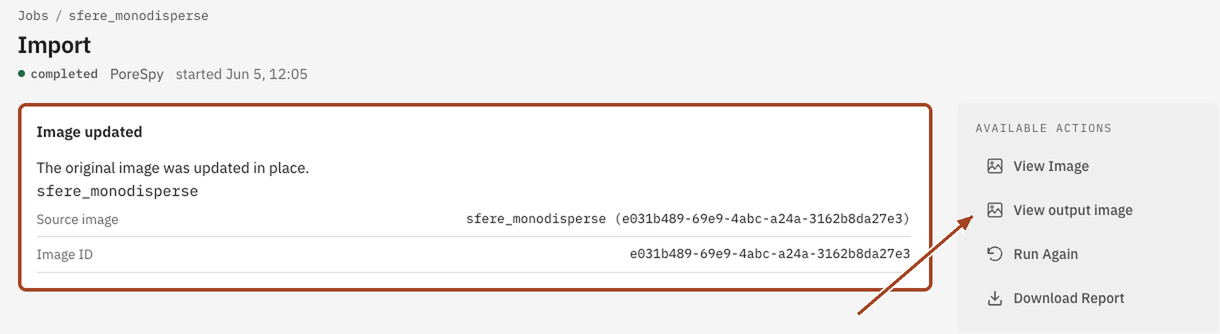
The job page shows an Output image panel with the new image's name and View output image. The image opens in the library as binary, with its porosity measured.
Common problems
- The image is all pore, or only a shell is solid. The mesh isn't watertight, so its inside couldn't be filled. Repair it and import again.
- The voxel size is wrong by a factor of 1000. The mesh was drawn in millimetres or metres. Set Voxel Size Override (µm), or correct the voxel size on the image page afterwards.
- Thin walls vanish. A wall thinner than one voxel can fall between voxel centres. Raise Max Side Length (in voxels).
- Solid and pore are the wrong way round. For a mesh of the pore space rather than the solid, invert the new image.