Upload
Upload brings a 3D image of a porous material into your team's library, from your computer or from a cloud share link. PoreStore reads it, stores it exactly as uploaded and measures it, and the image is then ready for any tool.
- Find it Images › Upload, or Tools › Image Management › Upload
- Takes a
.npy,.npz,.zip,.raw,.tifor.tifffile up to 4 GB, from your computer or a Dropbox, Google Drive or OneDrive link - Returns one new image per array in the file, binary or greyscale, with its values unchanged
- Next segment a greyscale image, or start analysing a segmented one
Run it
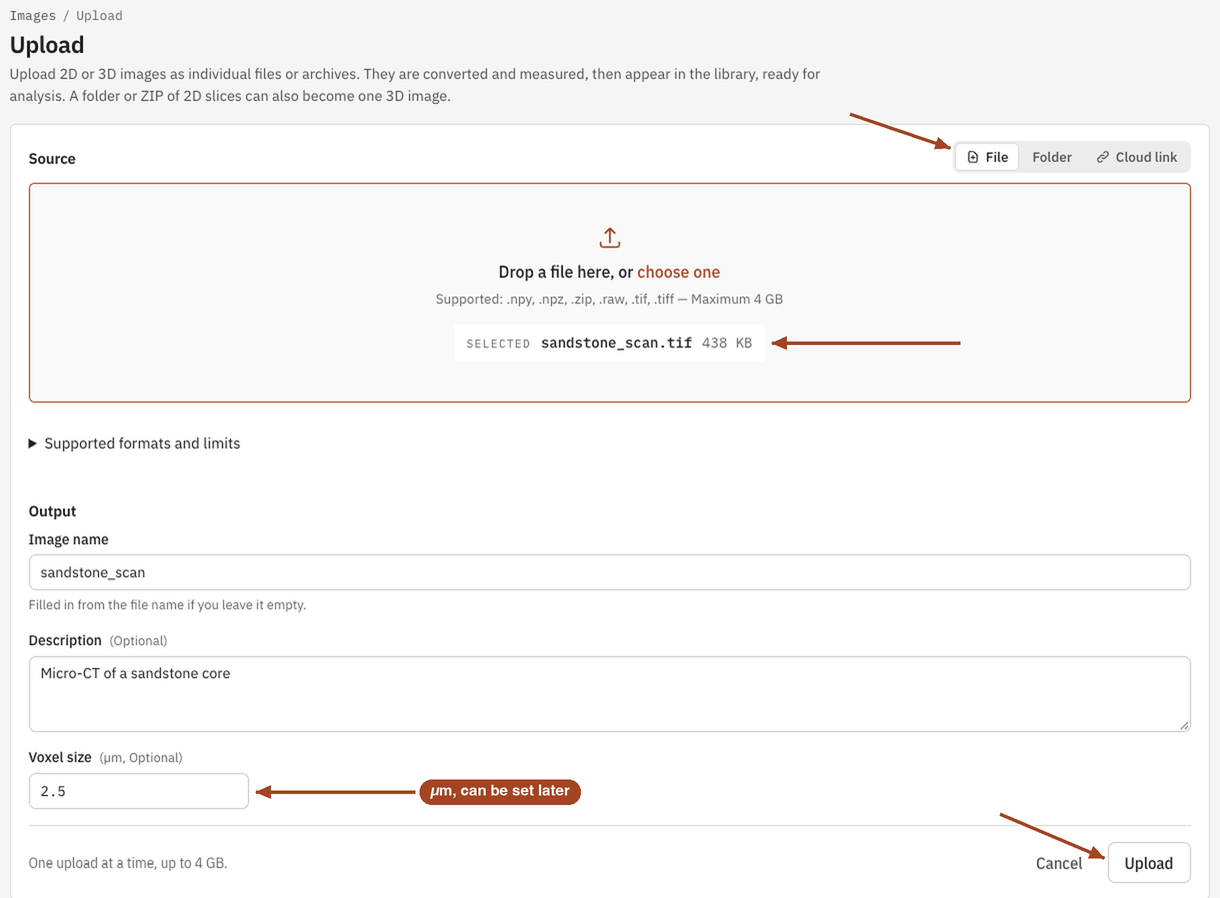
- Open Images and select Upload.
- Under Source, choose where the file comes from: File, to drop a file from your computer or choose one, or Cloud link, to paste a public share link. Folder uploads a folder of slices as one 3D image.
- For a
.rawfile, fill in the RAW file dimensions that appear: its width, height, depth and data type. - Under Output, give the Image name (left empty, it's taken from the file name), an optional Description, and the Voxel size in micrometres if you know it.
- Select Upload. A progress bar follows the transfer, and the new image appears in the library as processing until PoreStore has read and measured it.
You can set or correct the voxel size later on the image page; results re-express themselves when you do.
Settings
| Setting | Default | Range | What it does |
|---|---|---|---|
| Source | File | File, Cloud link, Folder | Where the file comes from. One file, archive or folder per upload. |
| Share link | a public Dropbox, Google Drive or OneDrive link | Cloud link only. PoreStore downloads the file itself, with the same formats and limit. | |
| RAW file dimensions | width, height, depth ≥ 1 | .raw files only. See RAW. |
|
| Image name | the file name | up to 200 characters | The name the library shows. |
| Description | empty | free text | Notes on the sample, imaging conditions and so on. |
| Voxel size | not set | a positive number of µm | The edge length of one voxel. Leave it empty to keep results in voxel units for now. |
Formats
Every format is stored exactly as uploaded: the same values and data type, with no rescaling and no segmentation. An upload can be at most 4 GB, and each image in it at most 4 GB once read.
A single 3D NumPy array, binary or greyscale. The best choice: any data type and memory order NumPy supports. The array's axes 0, 1 and 2 become X, Y and Z.
| Setting | Value |
|---|---|
| Images per file | 1 |
| Settings | none |
A multipage TIFF stack. The page number becomes X, the rows Y and the columns Z. A stack with colour channels is averaged over its channels into one greyscale value per voxel.
| Setting | Value |
|---|---|
| Images per file | 1 |
| Settings | none |
A headerless block of voxel values, read in order and shaped as depth × height × width, so Depth (slices) becomes X, Height (px) Y and Width (px) Z. The file's size must equal width × height × depth × bytes per voxel exactly, or the image fails with the size it expected.
| Setting | Value |
|---|---|
| Width (px), Height (px), Depth (slices) | whole numbers, 1 or more |
| Data type | uint8, uint16, uint32, float32 or float64, little-endian |
| Guess | fills in a cube of uint8 voxels that matches the file's size |
A NumPy archive of several arrays. Each array becomes a separate image, in name order, up to 32 per archive.
| Setting | Value |
|---|---|
| Images per file | up to 32 |
| Settings | none |
An archive of .npy, .tif or .tiff files. Each file becomes a separate image, in name order, up to 32 per archive. An archive of slices therefore gives one image per slice, not one volume. Tick Combine ZIP slices into one 3D image to stack them instead, as for a folder.
| Setting | Value |
|---|---|
| Images per file | up to 32, or 1 with Combine ZIP slices into one 3D image |
| Combine ZIP slices into one 3D image | off |
A folder of greyscale TIFF, PNG, BMP or JPEG slices, all the same size and data type, becomes one 3D image. Filenames set the slice order, read naturally, so slice2 comes before slice10. Each slice's rows and columns become X and Y, and the slice number becomes Z. Put every slice in one folder; separate folders can't be combined.
| Setting | Value |
|---|---|
| Images per upload | 1 |
| Limit | 4 GB per upload, archive overhead included |
Results
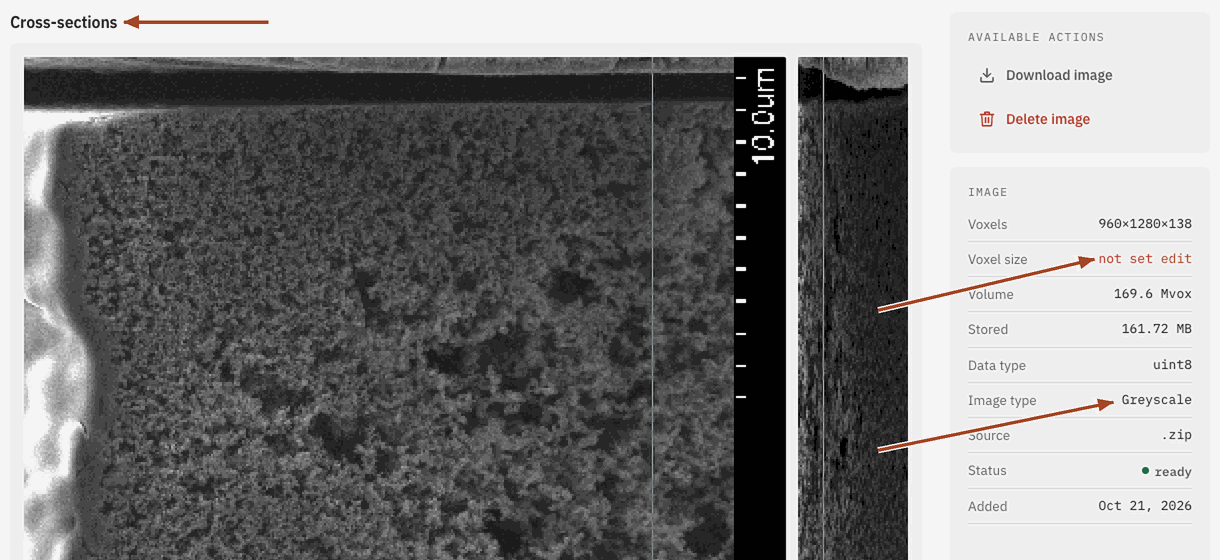
The new image opens in the library as processing. When it's ready, its page shows its cross-sections, size, data type, and whether it's Binary or Greyscale, with its porosity if it's segmented. See Images for everything the image page shows.
Common problems
- The upload button stays disabled. Choose a file of a supported type, or paste a share link, and fill in all three RAW dimensions for a
.rawfile. - The image failed with a size mismatch. The RAW dimensions or data type don't match the file. Check them against the software that wrote the file.
- My slices became separate images. A
.zipof slices gives one image per slice. Stack them into a multipage TIFF first, or upload them as a folder. - The axes aren't the ones I expected. PoreStore keeps the array's order. Rotate the stack before uploading if flow should run along another index.
- The file is larger than 4 GB. Crop or downsample it before uploading, or save it in a smaller data type.
- A cloud link fails. The link must be public, so anyone with it can download the file without signing in.