Connectivity Analysis
Connectivity Analysis splits the pore space, and the solid, by how each connected cluster meets the faces of the image: which clusters span the sample, which open to the outside on one side only, and which are sealed inside. Use it to compare with gas pycnometry, to see how much of the porosity can carry flow, or to see what Image Cleaning would remove.
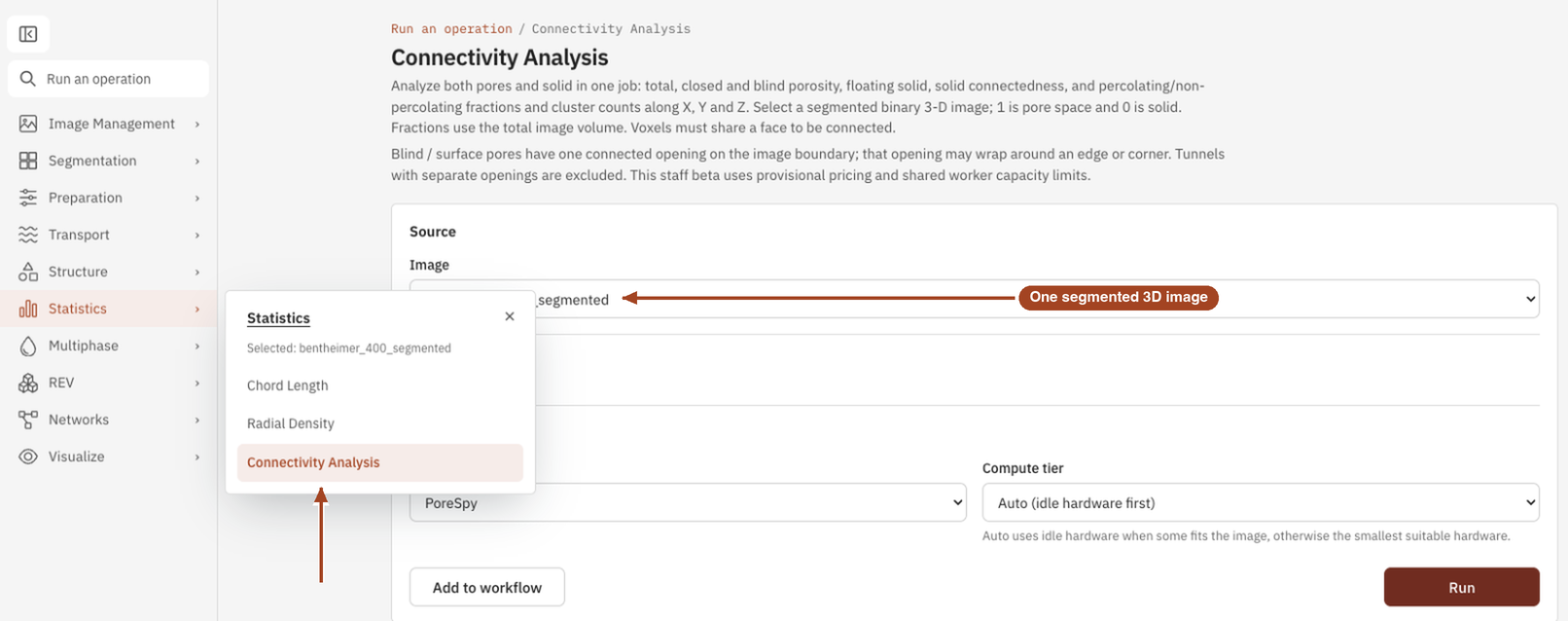
- Find it Tools › Statistics › Connectivity Analysis
- Needs a segmented 3D image, at least 2 voxels along each axis and up to 1024³ voxels
- Returns total, closed, blind and percolating porosity along X, Y and Z, and how connected the solid is
- Runs on CPU, with PoreSpy
- Science Connectivity Analysis
Run it
- Open Tools, then Statistics, and select Connectivity Analysis. It's also under Statistics in the side navigation, and you can start from an image's page, which fills in the image for you.
- Under Source, choose the Image. This tool runs on one image at a time, not on a batch.
- Under Compute, the Backend is PoreSpy. There's nothing else to set: both phases and all three axes are analysed in every job.
- Select Run. The job page opens and follows the job until it finishes.
Settings
| Setting | Default | Range | What it does |
|---|---|---|---|
| Image | your team's segmented 3D images | The image to analyse. | |
| Backend | PoreSpy | PoreSpy | The software that runs the analysis. |
| Compute tier | Auto | Auto, or a tier your team may use | Shown only when your team can choose the machine. Every tier gives the same answer. See Compute and hardware. |
Voxels count as connected only when they share a face, and every face of the image counts as open. Neither is a setting.
Results
This tool has no single summary figure. Under Porosity measurements, the job page shows four tables, every value a percentage of the whole image volume:
- Porosity: Total porosity, Closed porosity (clusters that touch no face) and Blind / surface porosity (clusters with one opening to the outside).
- Pore percolation: for X, Y, Z and Any direction, the Percolating porosity in clusters that join opposite faces, the Non-percolating porosity in the rest, and the number of Percolating clusters.
- Solid connectivity: the Solid volume fraction, Floating solid (no boundary contact), Solid with one connected boundary contact, the number of Solid clusters, whether All solid connected, the Largest solid cluster and the Solid outside the largest cluster.
- Solid percolation: the same split as for the pores, for the solid.
Interpret these results under the tables explains each class.
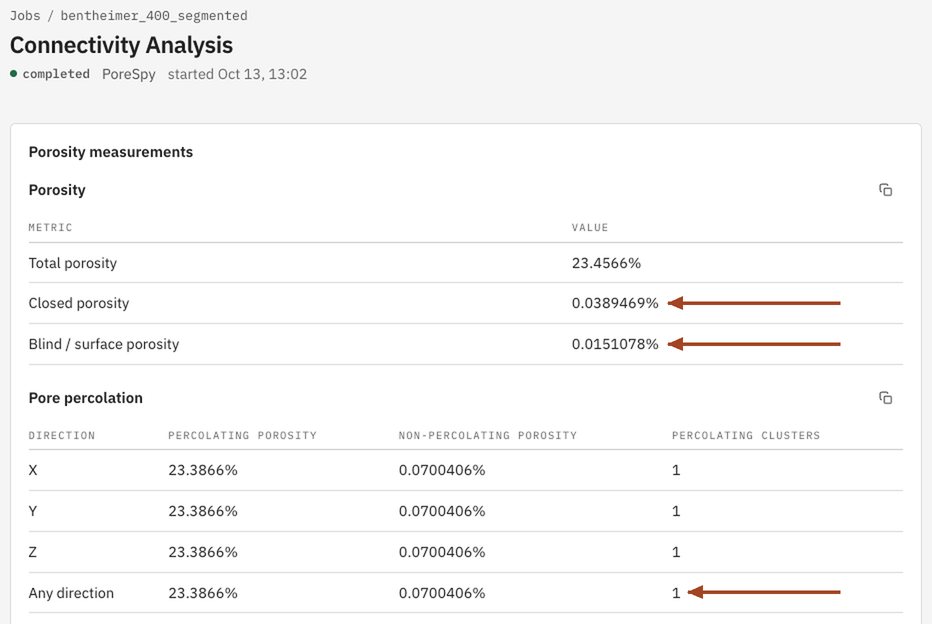
From the job page you can Download Report as PDF or HTML and Run Again.
Common problems
- The image is refused. It must be a segmented 3D image, with at least 2 voxels along each axis, and finished uploading.
- Closed, blind and non-percolating don't add up. They overlap by design: closed and blind clusters are both non-percolating, and some non-percolating clusters are neither.
- A cropped image shows less closed porosity than expected. Cropping cuts open pores that are sealed in the whole sample, so they count as blind or percolating instead.
- Dead ends count as percolating. A dead-end branch of a spanning cluster belongs to that cluster, even though nothing flows through it.
Science
How clusters are classified, the identities the result satisfies and how to compare it with other measurements: Connectivity Analysis in the Scientific reference.