Network Extraction
Network Extraction reduces the pore space of your image to a pore network: pores as nodes, with a size and position, joined by throats, the constrictions between them. Use it to get pore and throat statistics, or a network to simulate in your own pore network model.
- Find it Tools › Networks › Network Extraction
- Needs a segmented 3D image, up to 900³ voxels
- Returns the number of pores and throats, and a network file with every pore's and throat's size, position and connections
- Runs on CPU, with PoreSpy: SNOW2 or MAGNET
- Science Network Extraction
Run it
- Open Tools, then Networks, and select Network Extraction. You can also start from an image's page, which fills in the image for you.
- Under Source, choose the Image, or a batch to run every image in it.
- Under Method, choose the Extraction method: SNOW2 splits the pore space into regions, MAGNET follows its skeleton. Only the chosen method's options are shown.
- Adjust the method's options, or keep the suggested values.
- Under Compute, leave the Backend on PoreSpy.
- Select Run. The job page opens and follows the job until it finishes.
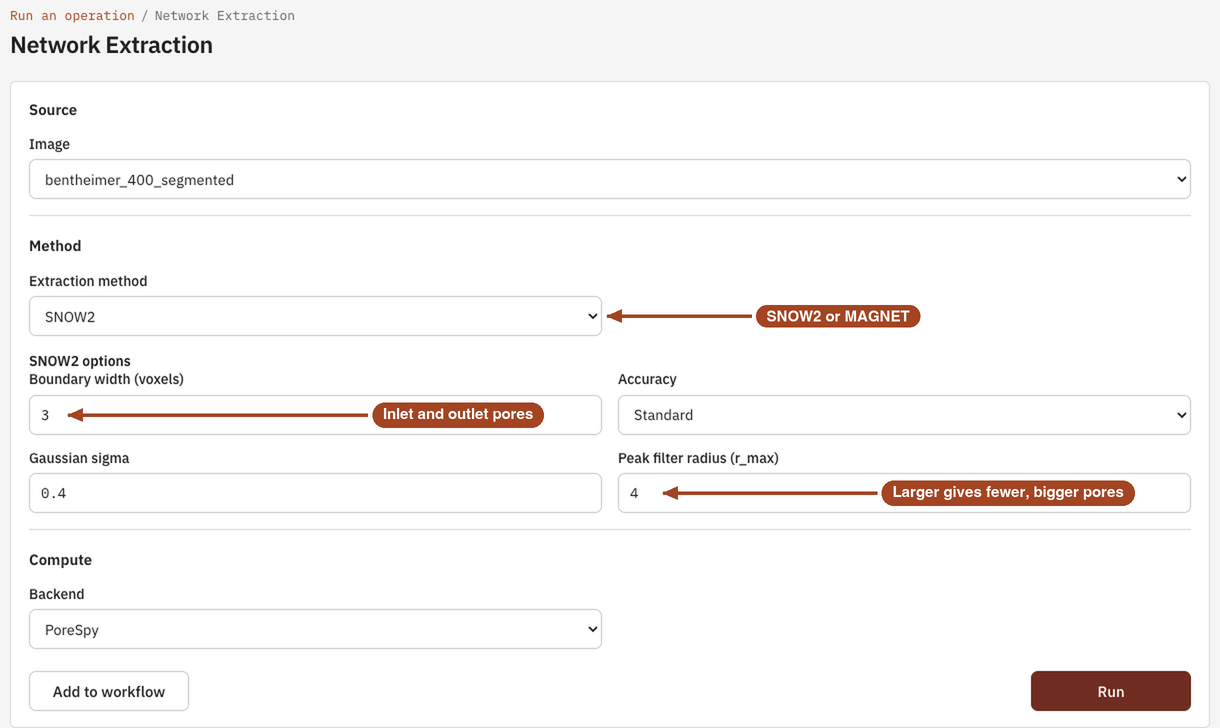
Settings
| Setting | Default | Range | What it does |
|---|---|---|---|
| Image | your team's images and batches | The image to extract from, or a batch to run one job per image. | |
| Extraction method | SNOW2 | SNOW2, MAGNET | How pores are found: SNOW2 from a watershed of the pore space, MAGNET from its medial axis. |
| Backend | PoreSpy | PoreSpy | The software that runs the extraction. |
SNOW2 options
| Setting | Default | Range | What it does |
|---|---|---|---|
| Boundary width (voxels) | 3 | 0 or more | Thickness of the layer of boundary pores added on each face, which mark the inlets and outlets. 0 adds none. |
| Accuracy | Standard | Standard, High | Standard counts voxels for volumes and areas; High measures them on smoothed surfaces, slower but less biased. |
| Gaussian sigma | 0.4 | 0 or more | How much the distance map is smoothed before pores are found, in voxels. More smoothing gives fewer, larger pores. |
| Peak filter radius (r_max) | 4 | 1 or more | How far apart two pore centres must be, in voxels. Larger gives fewer, bigger pores. |
MAGNET options
| Setting | Default | Range | What it does |
|---|---|---|---|
| Trim floating surface solids (3D only) | off | on, off | Removes solid pieces that float free of the rest before the skeleton is taken. |
| Junction merge threshold (s) | chosen from the local pore size | 1 or more | Junctions closer together than this, in voxels, become one pore. |
| Throat max-filter length (l_max) | 7 | 1 or more | Long throats are split with extra pores at this spacing, in voxels. |
| Throat junction mode | None | None, Maximum Filter, Fast Marching | How long throats are split into shorter ones. |
| Compute throat area | off | on, off | Measures each throat's cross-section with random walkers, for a better throat diameter. Adds the three settings below. |
| Throat area walkers | 10 | 1 or more | Walkers per throat. |
| Throat area step size | 0.5 | 0 or more | Step length of each walker, in voxels. |
| Throat area max steps | unlimited | 1 or more | The most steps a walker takes. |
Results
The Jobs list and the report sum the result up as the number of pores in the network, boundary pores included. On the job page, the Extraction Results summary gives the method, the pores and the throats, and Available Actions offers the Pore network file.
- Pore network file: every pore's and throat's properties and connections, as a Python pickle of named arrays that loads into OpenPNM. The note under the summary says whether its sizes are in micrometres or in voxels.
- 3D view: open the image in 3D Visualization and choose its Network view to see the pores and throats drawn over the image.
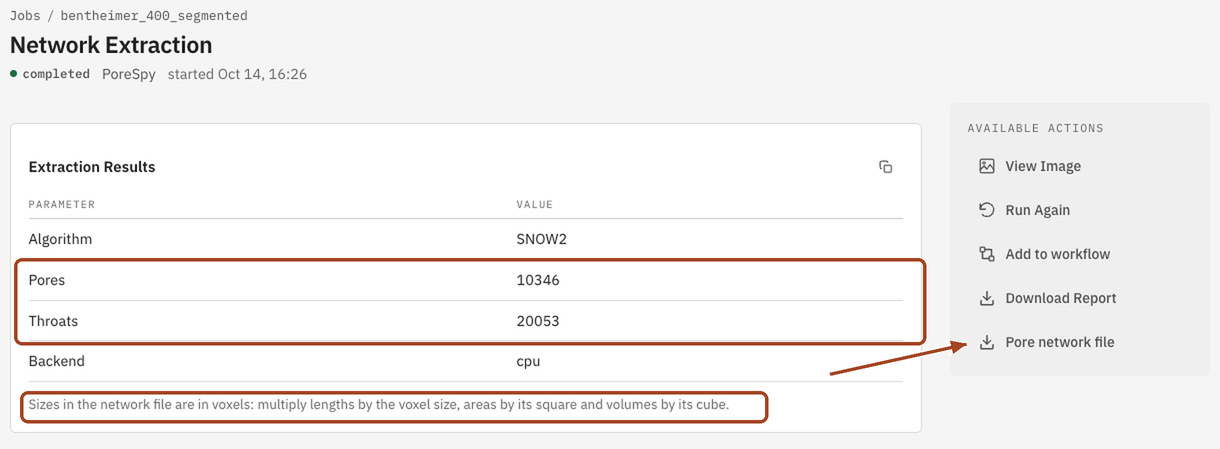
From the job page you can Download Report as PDF or HTML, download the Pore network file, and Run Again with the same settings. To check how well the network represents the image, run Network Validation on it.
Common problems
- Too many or too few pores. With SNOW2, raise Peak filter radius (r_max) or Gaussian sigma for fewer, larger pores, or lower them for more. Compare pore counts only between networks extracted with the same method, settings and voxel size.
- Validation refuses a throat diameter. A MAGNET network has an equivalent throat diameter only when Compute throat area was on. Extract again with it on, or choose another diameter in validation.
- No inlet or outlet labels. A MAGNET network has no boundary pores; only SNOW2 adds them.
- The image is too large. The largest image is 900³ voxels. Trim or downsample it first.
Science
How SNOW2 and MAGNET find pores and throats, and every property the network file holds: Network Extraction in the Scientific reference.