Downsample
Downsample makes a smaller copy of an image by keeping every second, third or fourth voxel along each axis. Use it to fit a large scan into an analysis, or to try settings quickly on a coarse copy before running the full image.
- Find it Tools › Preparation › Downsample
- Needs a 3D image, binary or greyscale
- Returns a copy with fewer voxels, the same values and data type, and a voxel size scaled to match
- Runs on CPU
- Science Downsample
Run it
- Open Tools, then Preparation, and select Downsample.
- Under Source, choose the Source image.
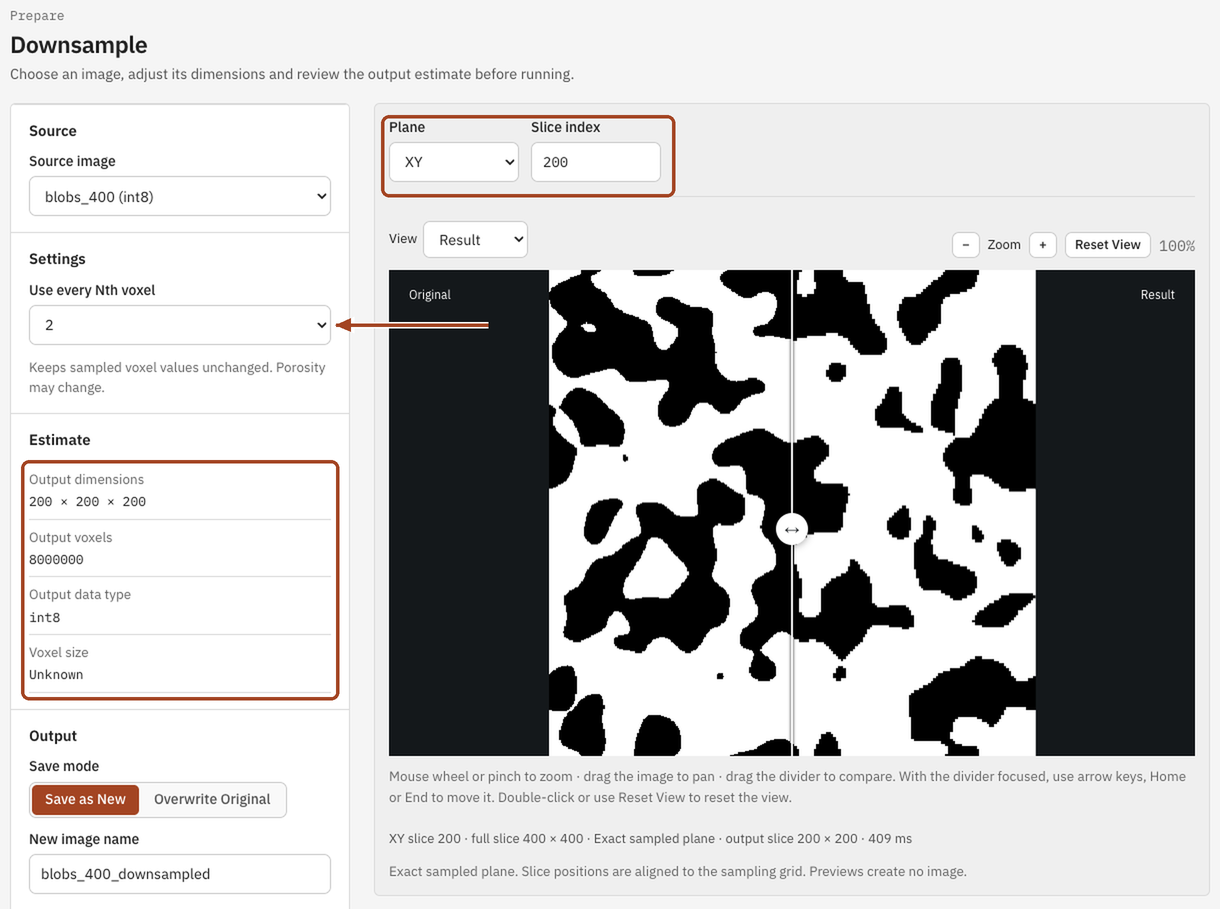
- Under Settings, choose Use every Nth voxel: 2, 3 or 4. Below the settings, the page shows the output's dimensions, number of voxels, data type and voxel size.
- On the right, the Slice preview compares a slice of the original with the same slice downsampled. Pick the Plane and Slice index to look at; previews create no image.
- Under Output, choose Save as New and a New image name, or Overwrite Original.
- Select Run. The job page opens and links to the new image when it's done.
Settings
| Setting | Default | Range | What it does |
|---|---|---|---|
| Source image | your team's ready images | The image to downsample. | |
| Use every Nth voxel | 2 | 2, 3, 4 | Keeps one voxel in \(n\) along each axis, so each side of \(N\) voxels becomes \(N/n\), rounded up. |
| Plane | XY | XY, XZ, YZ | The slice the preview shows. |
| Slice index | the middle slice | within the image | Which slice of that plane the preview shows. |
| Save mode | Save as New | Save as New, Overwrite Original | Whether to keep the original and add a smaller copy, or replace it. |
| New image name | the image's name with _downsampled |
up to 200 characters | Save as New only. |
Results
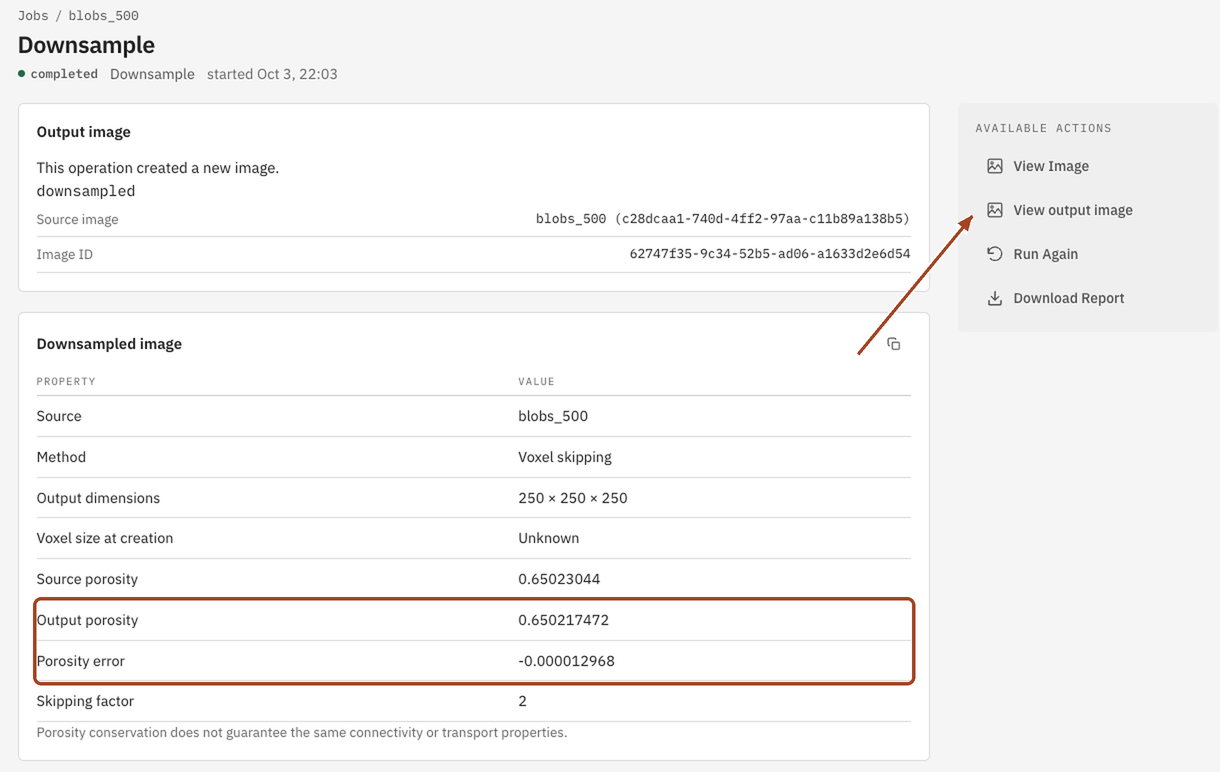
The job page shows the Downsampled image table, with the Source, Output dimensions, Voxel size at creation, the Skipping factor and, for a binary image, the Source porosity, Output porosity and Porosity error. An Output image panel links to the new image. Its voxel size is \(n\) times the original's.
Common problems
- Thin features vanished or broke up. Downsampling skips voxels without averaging, so anything thinner than \(n\) voxels can disappear. Use Resize to keep porosity, or a smaller \(n\).
- The porosity changed. Skipping voxels samples the image, so porosity drifts; the result table shows by how much.
- The image is too large. The page says, below the settings, when the image or its output is beyond what Downsample takes. Trim it first.
- Saving over the image removed its 3D fields. Overwriting an image discards the fields its earlier results saved, though their numbers stay.
Science
What downsampling does to porosity, connectivity and resolution: Resizing in the Scientific reference.