Adjust Values
Adjust Values changes what an image's values mean: it swaps pore and solid, or turns an integer image into a binary one by choosing which value is pore. Use it when your segmentation marked solid with the non-zero value, or when an image arrives as two values without a 0, such as 1 and 2, or as labels. A 0/255 image needs neither: it's already segmented, with 255 as pore.
- Find it Tools › Preparation › Adjust Values, or Prepare on an image's page
- Needs a binary image, or an image of whole numbers
- Returns the adjusted image, saved as a new image or over the original
- Runs on CPU
Run it
- Open Tools, then Preparation, and select Adjust Values.
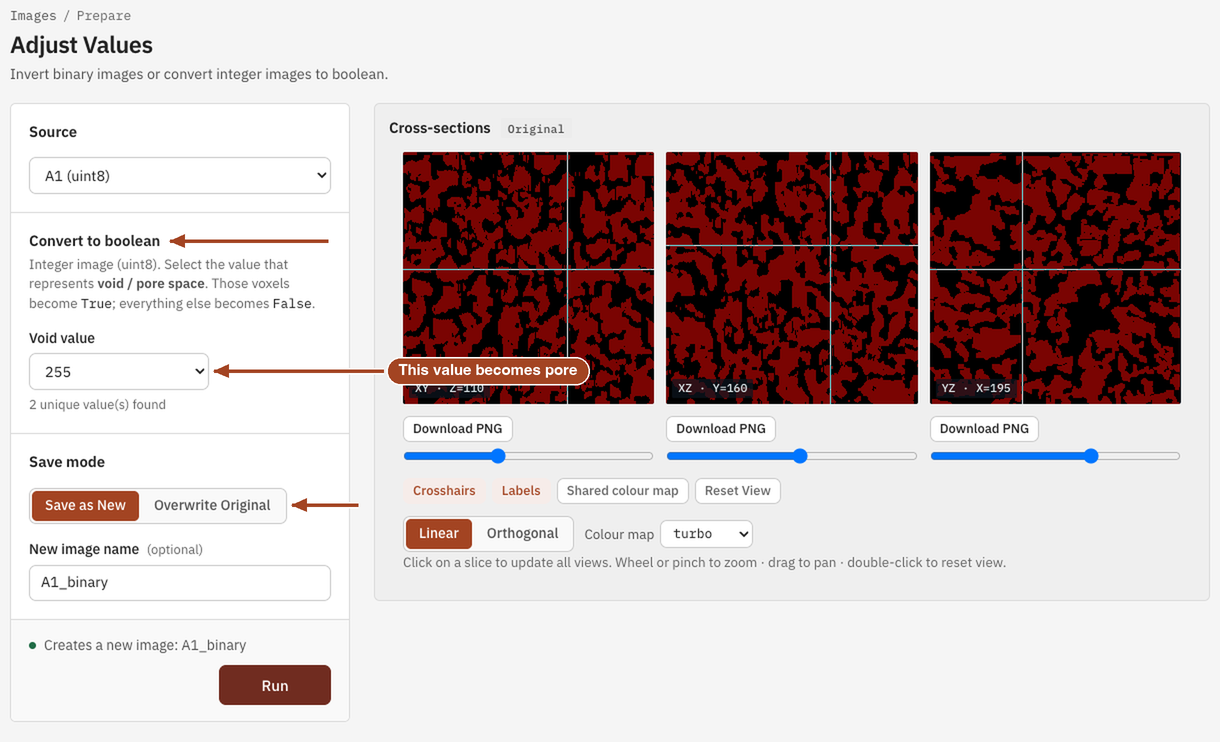
- Under Source, choose the image. Its cross-sections load, and the page offers the adjustment that suits its values:
- a binary image offers Invert, which swaps pore and solid;
- an image of whole numbers with two values offers Invert or Convert to boolean;
- any other image of whole numbers offers Convert to boolean.
- For Convert to boolean, choose the Void value: the value that marks pore space.
- Under Save mode, choose Save as New and a New image name, or Overwrite Original.
- Select Run. The job page opens and links to the adjusted image when it's done.
Settings
| Setting | Default | Range | What it does |
|---|---|---|---|
| Image | your team's images | The image to adjust. | |
| Adjustment | Invert | Invert, Convert to boolean | Offered for an image of two whole-number values. A binary image is always inverted, and an image of more values always converted. |
| Void value | the lower value | the image's values | Convert to boolean only. Voxels of this value become pore (1); every other voxel becomes solid (0). |
| Save mode | Save as New | Save as New, Overwrite Original | Whether to keep the original and add an adjusted copy, or replace it. |
| New image name | the image's name with _adjusted |
up to 200 characters | Save as New only. |
Invert keeps a two-valued image's own values and data type, swapped; a 0/1 image comes back as binary. Adjust Values is for binary and whole-number images; segment a greyscale scan instead.
Results
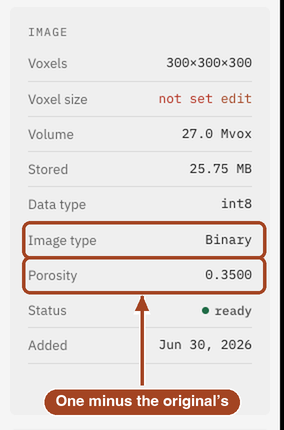
The job page shows an Output image panel, or Image updated when you overwrote the original, with View output image. Open the new image to check its porosity: an inverted image's is one minus the original's.
Common problems
- The porosity is one minus what I expected. Pore and solid are the wrong way round. Run Invert.
- Invert is refused. Invert needs a binary image: true and false, or whole numbers with exactly two values. Use Convert to boolean for anything else.
- The value I want isn't in the Void value menu. The menu lists the lowest and highest values in the image. For a labelled image whose pore label is in between, relabel it before uploading.
- Saving over the image removed its 3D fields. Overwriting an image discards the fields its earlier results saved, though their numbers stay. Use Save as New to keep them.