ParaView Server
ParaView Server runs a ParaView server on a GPU for the ParaView application on your own computer. You connect ParaView desktop to it and open the files your team has exported from PoreStore. The server reads and renders them, and ParaView shows the result, so a large field doesn't have to fit in your computer's memory or graphics card.
- Find it Tools › Visualize › ParaView Server
- Needs ParaView 5.12.1 on your computer, and the files you want to open exported as VTK image data (
.vti) or STL - Returns a connection address for ParaView desktop, for a session of up to 24 hours; nothing is saved
- Runs on GPU
Before you start
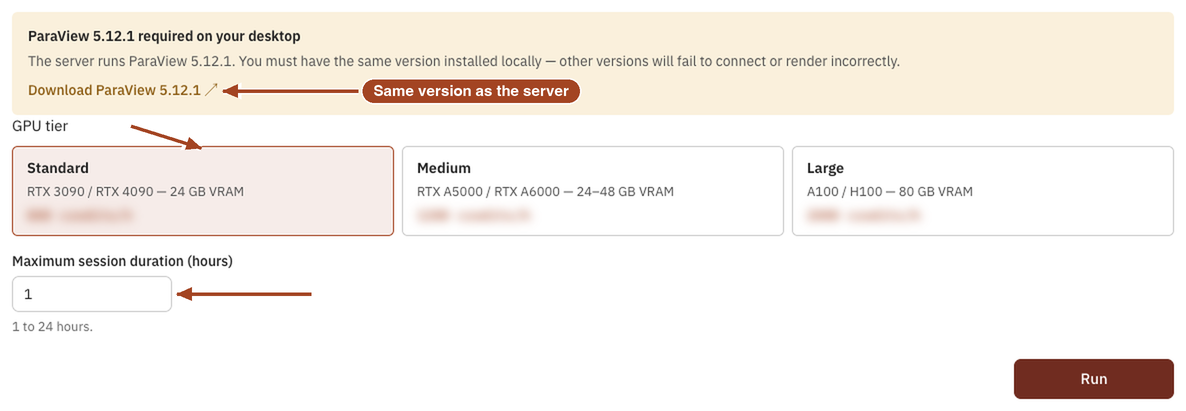
- Install ParaView 5.12.1. The server runs ParaView 5.12.1, and the desktop application must be the same version: other versions fail to connect or render incorrectly. The launch page links to the download.
- Export what you want to open. The server holds copies of the
.vtiand.stlfiles your team has exported, such as an image exported as VTK image data or as an STL mesh. Whether a result's saved fields exported as.vtiare among them: In progress. The server copies the files when it starts, so a file you export during a session isn't there until the next one. Uploaded images that haven't been exported, and.npzexports, aren't copied.
Run it
- Open Tools, then Visualize, and select ParaView Server. There's no image to choose.
- Choose a GPU tier and the Maximum session duration (hours).
- Select Run. The job page shows Starting ParaView Server… while the server starts, which typically takes 2–4 minutes, then ParaView Server is ready with a Connection address,
host:port. Copy puts it on your clipboard. - In ParaView desktop, choose File → Connect, add a server with that host and port, and connect.
- Open files from
/dataon the server, in ParaView's file dialog. - When you're done, disconnect ParaView, or select Shut down ParaView Server on the job page.
The session shows in your team's job list as a 3D Visualization job. One 3D session can run for a team at a time, and that includes a 3D Visualization session.
Settings
| Setting | Default | Choices | What it does |
|---|---|---|---|
| GPU tier | Standard | Standard (24 GB GPU), Medium (24–48 GB GPU), Large (80 GB GPU) | The GPU the server runs on. A larger tier renders larger data. |
| Maximum session duration (hours) | 1 |
1–24 | The longest the session can run. The session ends when it's reached. |
Results
The job page's ParaView Server session panel shows the Connection address once the server is ready, with the steps to connect. The server works on copies of your exported files and saves nothing back to PoreStore. Save anything you make in ParaView, such as a state file or a screenshot, on your own computer.
In progress
Screenshot: a ParaView Server job page in the ready state. Arrows to the Connection address with its Copy button and to Shut down ParaView Server. Blur the host and port.
The server takes one ParaView client, and the session ends, with its server stopped, when the first of these happens:
- ParaView disconnects from it;
- no ParaView client has connected within 15 minutes of the server starting;
- you select Shut down ParaView Server on the job page;
- the maximum session duration is reached.
So reconnecting after you disconnect needs a new session.
Common problems
- ParaView fails to connect, or draws incorrectly. Your desktop ParaView isn't version 5.12.1. Install that version.
- The session ended before you connected. No client connected within 15 minutes of the server starting. Run a new session when you're ready to connect.
- A file isn't in
/data. Only files exported before the session started are copied. Export it, then start a new session. - The launch page shows "A 3D render session is already running for this team." Someone on your team has a ParaView Server or 3D Visualization session open. Select Go to running session, or shut it down first.