Images
The Images library holds every image your team has uploaded, imported or made with a tool. Every member of the team sees the same library, and every analysis starts from an image in it.
The library
Each row shows an image's name, its size in voxels, its voxel size, its porosity, its status and the number of jobs run on it. Filter narrows the list by name, and the time menu by when images were added: the last 7, 30 or 90 days, or the last year.
Select images with their checkboxes to work on several at once: Save as batch, Add to batch…, or Delete.
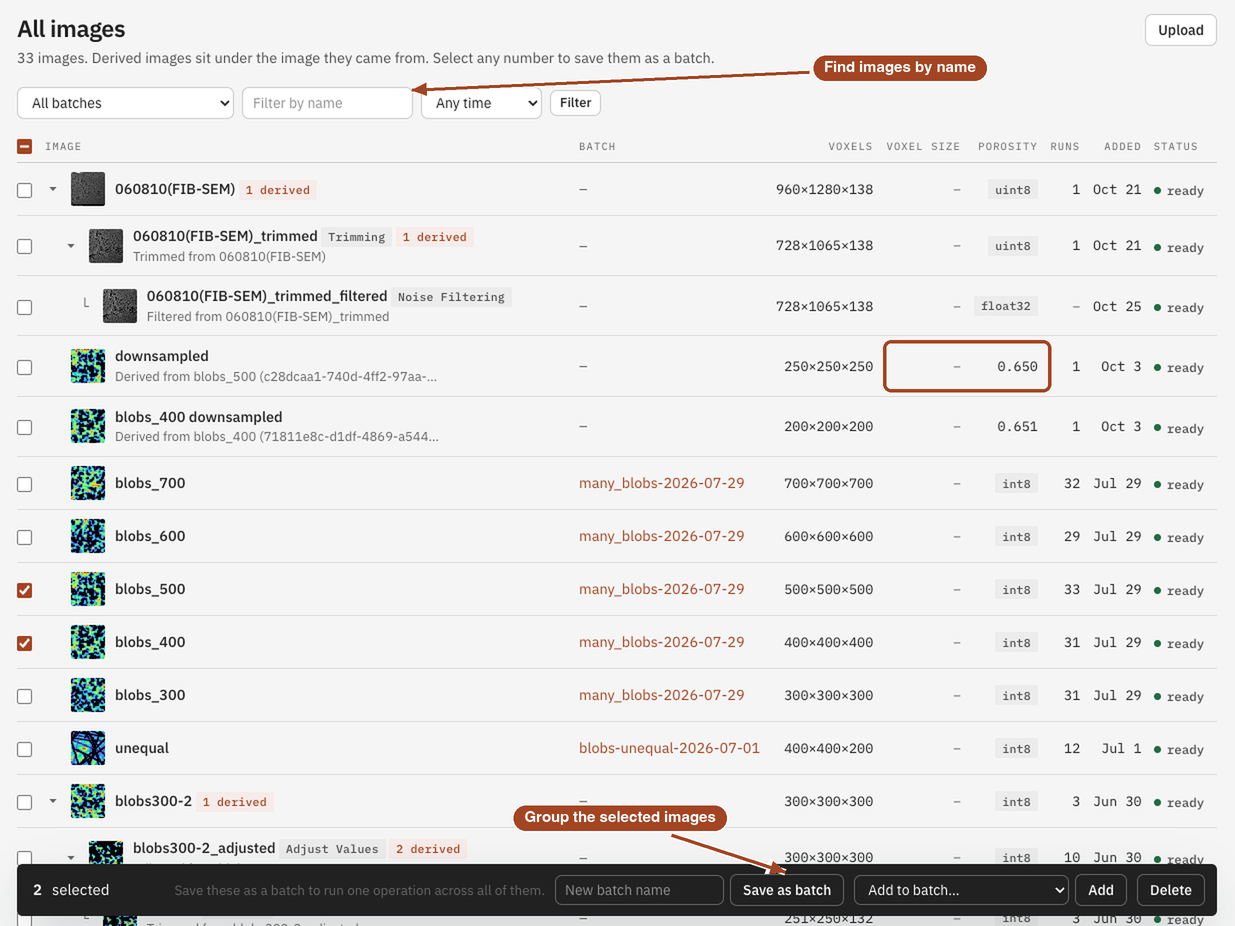
Status
| Status | What it means |
|---|---|
| processing | PoreStore is reading the file, storing it and measuring it. The image page updates by itself when it's done. |
| ready | The image can be analysed. |
| failed | The file couldn't be read. The image page shows the reason. Fix the file and upload it again. |
An image whose stored voxels turn out to be unreadable shows unreadable, and no analysis can run on it. Upload it again.
The image page
Open an image to see:
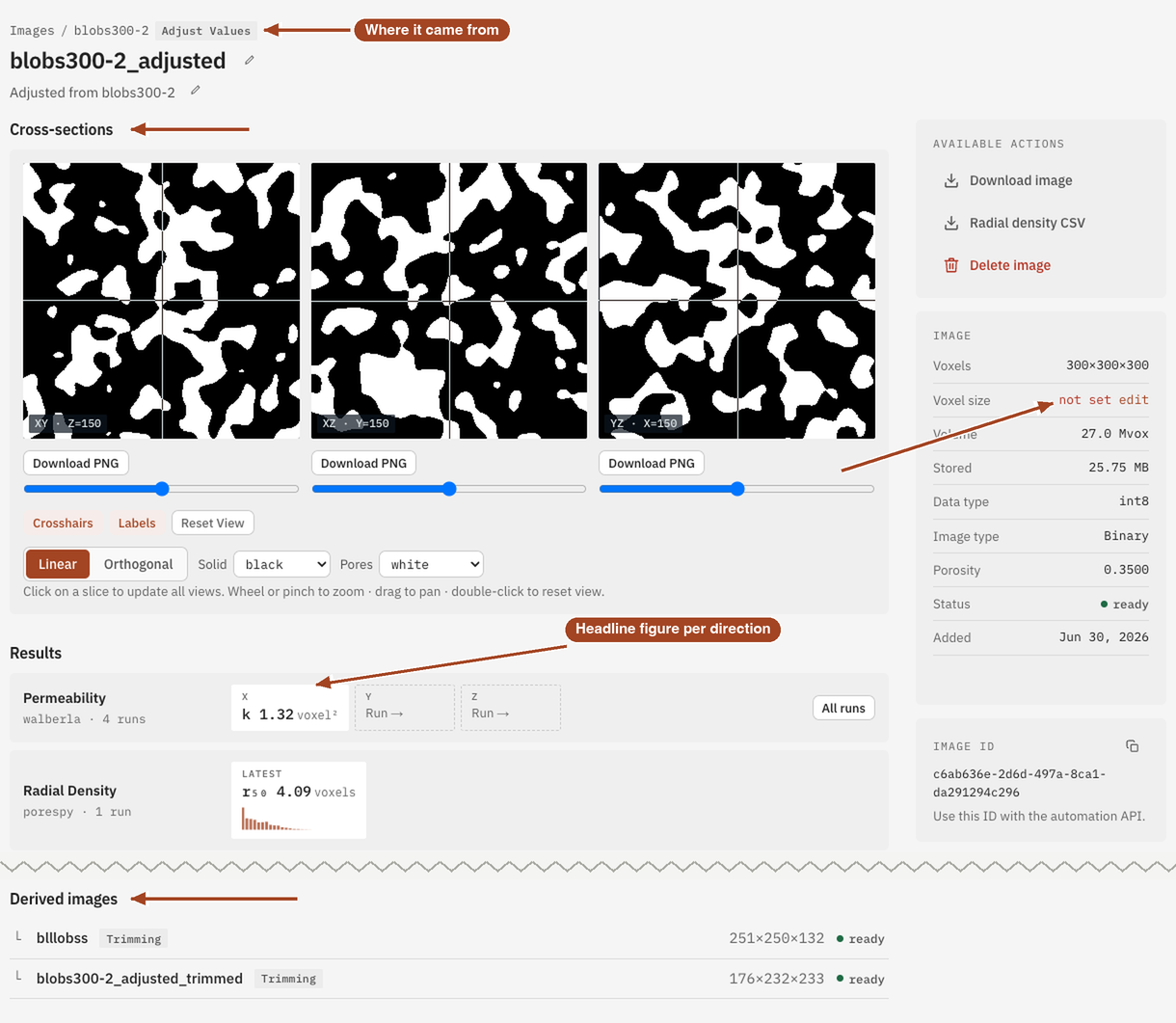
- Cross-sections: three orthogonal slices through the image. Click a slice to move the other two to that point; scroll or pinch to zoom, drag to pan, and double-click to reset the view.
- Results: one row per tool run on the image, with a slot per direction. A completed slot shows its headline figure; an empty one offers Run →.
- Derived images: the images made from this one by a tool, such as a cleaned or trimmed copy. The breadcrumb above the image's name shows the image it came from and the tool that made it.
- History: the image's most recent jobs, with Open in Jobs for the full list.
- Image: its voxels, voxel size, physical extent, data type, image type (Binary or Greyscale), porosity, status, and who added it when.
The left rail also links straight to the Prepare and View tools for this image, with the image already chosen.
Voxel size
The voxel size is the edge length of one voxel, in micrometres. Results are shown in physical units once it's set, and in voxel units until then.
To set or change it, select edit beside Voxel size on the image page, type the new value and select Save. It must be a positive number.
Changing the voxel size re-expresses every result on the image at once. PoreStore stores results in voxel units and converts them whenever you look, so nothing is rerun: correct a typo and every permeability, pore size and pressure on that image is right the next time you open it. Files you exported earlier keep the voxel size they were made with. Units and voxel size explains why this works.
What PoreStore measures when an image arrives
Every image gets its shape, data type and range of values, a thumbnail and its cross-sections. A segmented image also gets its porosity \(\varphi\): the fraction of voxels that are pore, counting every pore voxel whether or not it's connected to anything.
Segmented images
Every analysis, and every tool that works on the pore space, takes a segmented image: 0 is solid, and the image's one other value is pore. True, 1 and 255 all mark pore, so a boolean image, a 0/1 image and a 0/255 image of the same sample give the same results in every tool.
- Segmented: a boolean image, with true as pore, or an image of whole numbers holding 0 and one positive value, such as 0 and 1 or 0 and 255. A decimal image counts only if its values are 0 and 1. An image that is all 0 or all 1 is segmented too, though a tool such as Permeability needs both pore and solid.
- Not segmented: a greyscale image, an image of labels with more than two values, and a two-valued image without a 0, such as 1 and 2. A tool refuses such an image before the job is queued, and says how to fix it; for an older image whose type PoreStore hasn't recorded, the job fails as soon as it starts instead. Segment a greyscale image; for a two-valued or labelled image, choose the pore value with Convert to boolean in Adjust Values.
- Pore must be the value that isn't 0. If your image marks solid with the non-zero value, invert it before you analyse it: PoreStore can't tell which phase you meant.
The image page's Image type says Binary for any image of two values and Greyscale otherwise, so a Binary image without a 0, such as one of 1 and 2, still needs converting.
Conventions
These hold across PoreStore, and every tool assumes them:
- 0 is solid, and the other value is pore, as Segmented images describes.
- Axes X, Y and Z are the array's axes 0, 1 and 2, exactly as uploaded. PoreStore never transposes or flips an image, so "flow along X" means along the first index.
- Voxels are cubes. The voxel size is a single edge length.
Batches
A batch is a named group of images, such as every sample in a study. Tools that take a batch run once per image, with the same settings. To make one, select images in the library and choose Save as batch; to add more later, select them and choose Add to batch…. In any tool, choose the batch under Source instead of an image.
The Batches page lists them, and lets you open, Rename or Delete each one. Deleting a batch keeps its images.
Renaming and deleting
Click an image's name on its page to rename it, or Add a description below it.
Delete image, in the image's Available Actions, removes the image and its stored voxels, and the 3D fields its results saved, such as a velocity or concentration field. The jobs that ran on it stay in Jobs, with their numbers, tables and charts. Deleting can't be undone.
Common problems
- The image stays at processing. Large files take a few minutes to read and store. The page updates by itself; see Opening stored data.
- The image failed. The image page shows why. The usual causes are a RAW file whose dimensions or data type don't match its size, and a file that isn't one of the supported formats.
- Porosity is missing. The image isn't segmented. Segment it, or use Adjust Values to convert it to boolean.
- An analysis refuses the image as not segmented. It's greyscale, holds labels, or has two values without a 0. See Segmented images for how to fix each.
- Results are in voxels. The voxel size isn't set. Set it on the image page.